August 2026 Enterprise Releases
1786139603266
HeyGen has moved to a monthly release cadence for enterprise. Explore key upcoming features and deprecations for August 2026.
1. Feature updates
A) Enterprise plan features
Avatar look & voice control
What's new
We've introduced new Avatar Visibility and Avatar Look & Voice Access controls under Workspace Controls → Content Permissions, giving admins more control over how avatars are shared and used across the workspace.
How it works
Admins can choose whether new avatars are public or private by default. When avatars are private, creators can share them with everyone in the workspace or with specific people, depending on the workspace's sharing policy.
Admins can also enable Avatar Look & Voice Access, allowing avatar owners and super admins to control which individual avatar looks and voices are available to others. When turned on, looks and voices are disabled by default and must be explicitly enabled before shared users can use them.
Why it matters
Organizations often need to share avatars while limiting access to specific looks or voices for branding, compliance, or role-based use cases. These controls provide more granular permission management, helping teams securely share avatar assets without exposing every available look and voice.
Sub-workspace quota control revamp
What's new
We've enhanced sub-workspace resource management by allowing parent workspace admins to reclaim allocated resources from sub-workspaces back to the parent workspace.
How it works
Parent workspace admins can allocate resources to sub-workspaces as before. If a sub-workspace no longer needs its allocated resources, admins can now return the unused allocation back to the parent workspace and reassign it where it's needed.
Why it matters
Organizations often need to adjust resource allocations as teams grow, shrink, or change priorities. Allowing admins to reclaim and reallocate unused resources provides greater flexibility, reduces waste, and makes it easier to manage quotas across multiple sub-workspaces.
Script customization on PPT / PDF to video
What's new
We've added new customization options to Generate Script with AI in the PPT/PDF to Video flow, giving users more control over how scripts are generated.
How it works
When users enable Generate Script with AI, they can now specify the script’s goal, length per slide, audience, tone, and language. They can also add custom instructions for any additional guidance.
These selections are used to generate a script that better matches the intended use case and communication style.
Why it matters
Enterprise teams often need scripts to follow specific brand, audience, and communication standards. These controls make AI-generated scripts more predictable and consistent, reducing manual edits and helping teams create content that is better suited for regulated and professional use cases.
B) Other core product updates
Avatar management / identity-selection redesign
What it is: A cleaner avatar-management surface and a clearer identity-selection step when uploading photos for an avatar.
Avatar Look Packs
What it is: Look Packs (Image-N) generate new looks of your avatar with best-in-class likeness preservation — change the outfit, background, or scene (office, studio, anywhere) while still looking exactly like you.
Hyperframes in Video Agent
HyperFrames is now inside HeyGen's Video Agent. The Video Agent already made all the decisions: script, voice, presenter, pacing, captions, music, what to show, and when. One prompt, and it's done. That was already the impressive part. Now it builds the graphics too.
HyperFrames, our motion graphics framework, runs in code, so it's fully customizable and legible to the agent. That means it builds any graphic you describe instead of picking one from a template. A chart growing over a photo. Words popping on beat. If you can describe it, it can build it. It also works with real media. Stock or its own generated video and photos, graphics built right on top.
Multilingual embed player
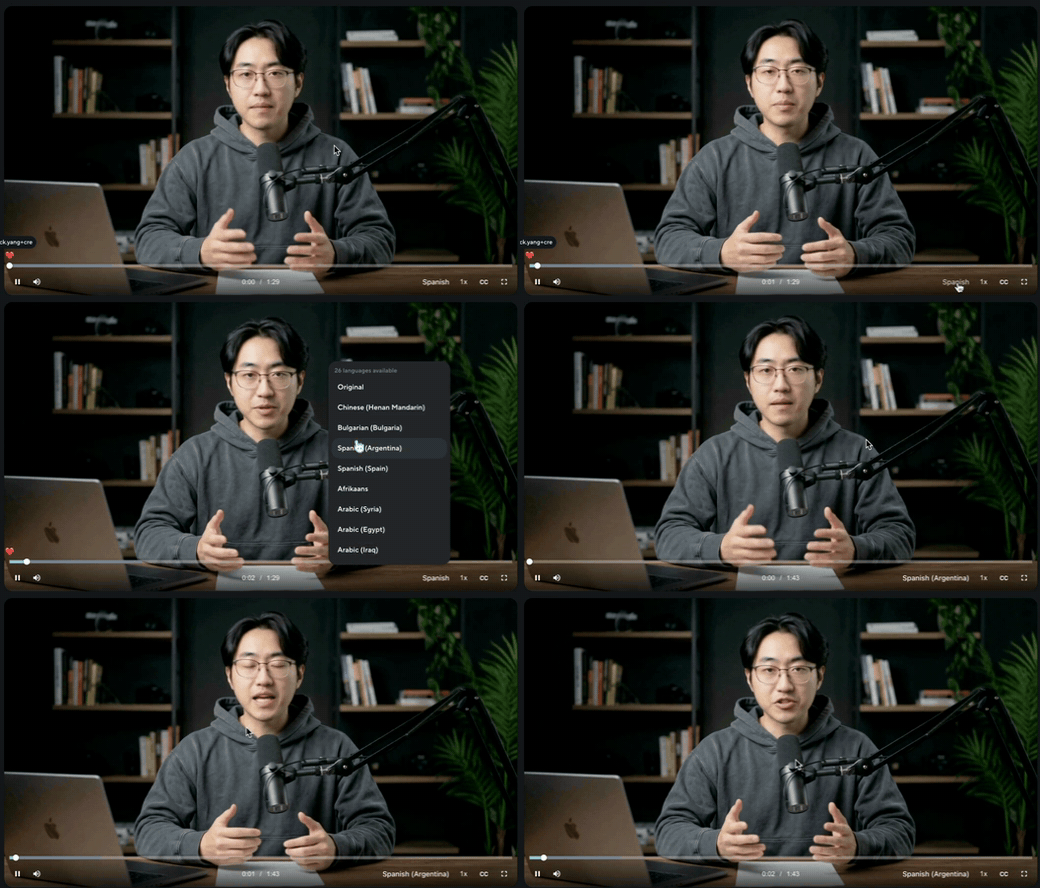
What it is: An in-player language selector with translation overlays on the share/embed video player, so a single shared link plays in multiple translated languages.
What users experience: Viewers pick their language directly in the embedded player instead of needing a separate link per language and also have the option to real-time translate the video into another language of their choice.
Caption clarity in download modal
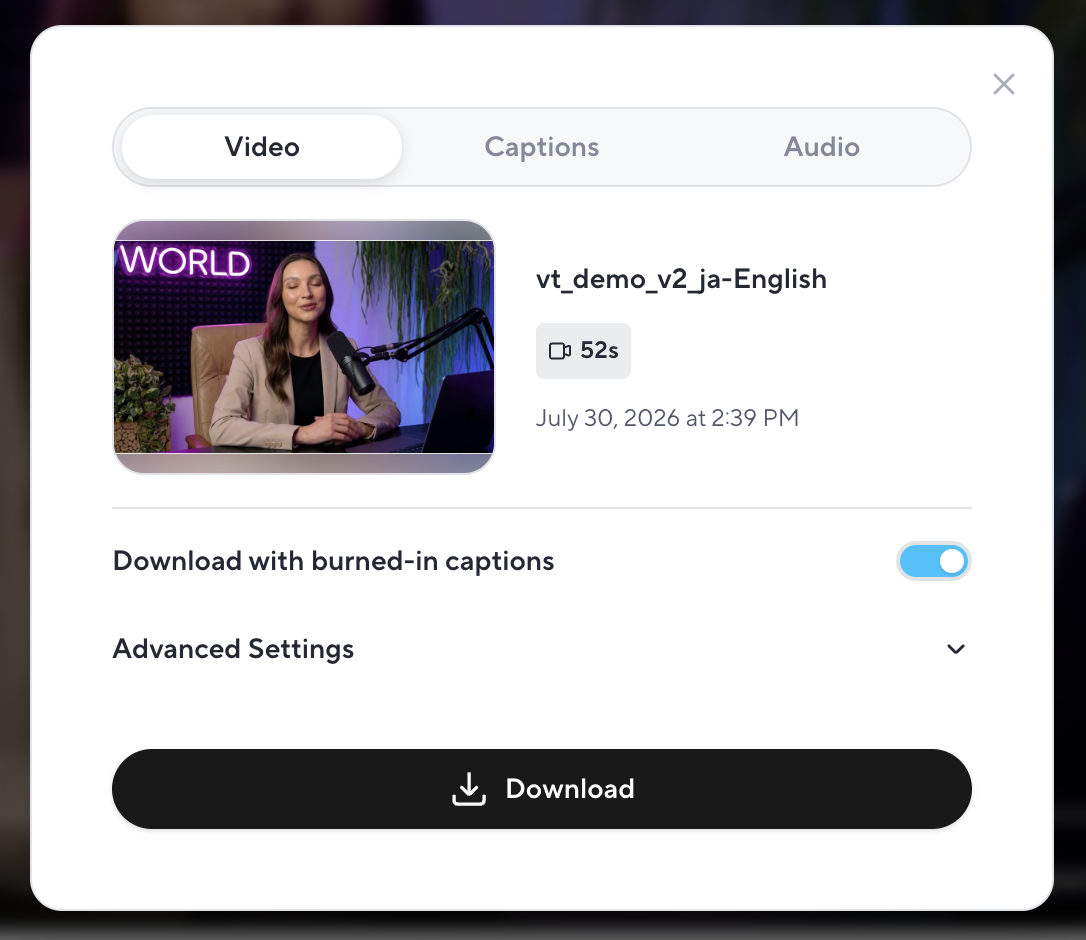
What it is: Puts the "Download with burned-in captions" toggle front and center in the video download modal, instead of hiding it inside the collapsed Advanced settings section. The modal also remembers the user's captions choice for future downloads.
What users experience: When downloading a video, the burned-in captions on/off toggle is immediately visible — no need to expand Advanced settings to find it — and it stays set the way they last used it. Everything else in the modal (resolution, SCORM, etc.) stays under Advanced settings as before.
Toggle off - user gets an .mp4 with soft captions, which is an overlay that can be turned on/off in video players that support a subtitles track.
Toggle on - user gets an .mp4 with burn-ed in captions.
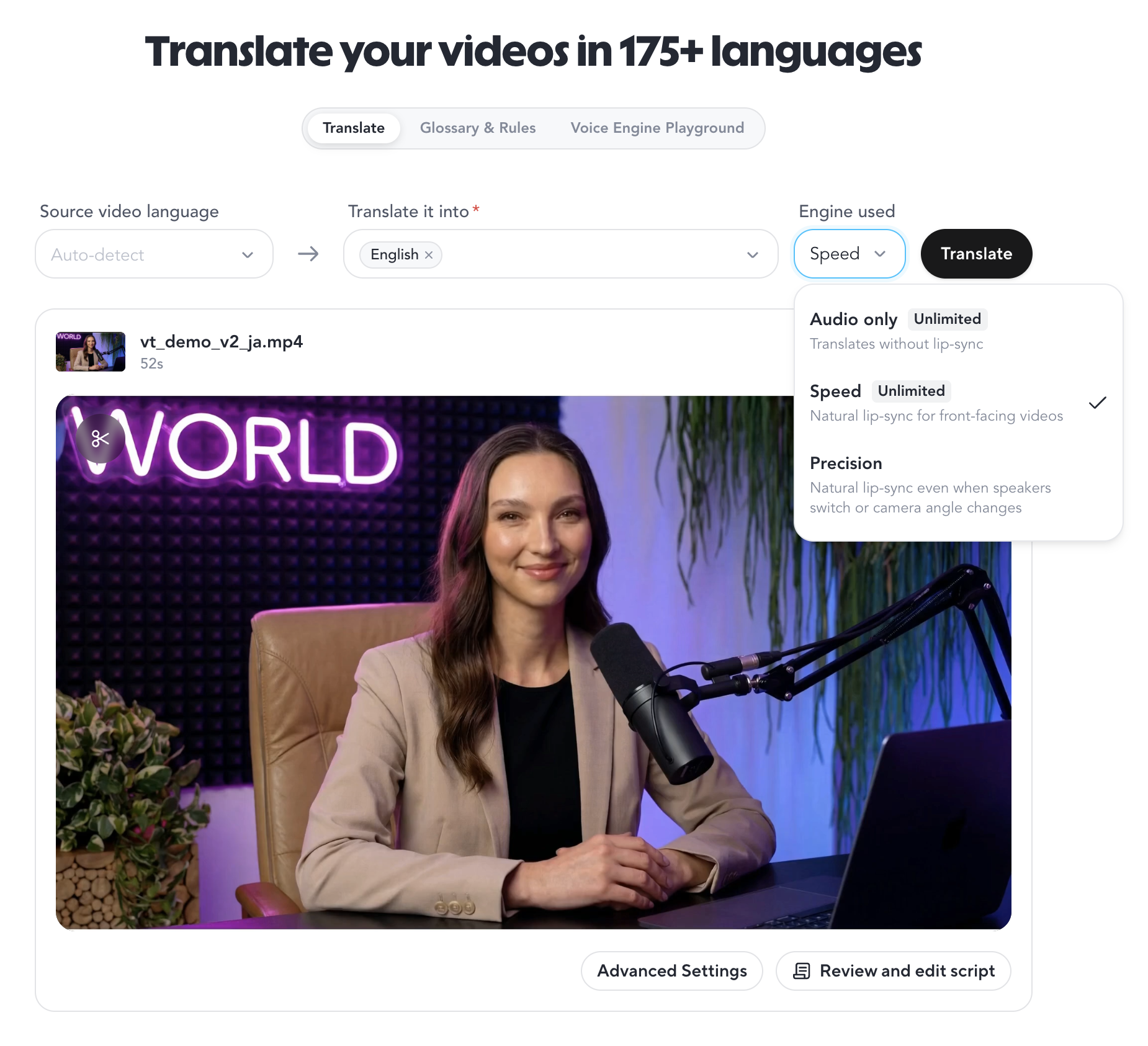
Translation layout re-design
What it is: On /apps/translate, the inner Video Dubbing / Audio Dubbing segment tabs are removed (the same choice is covered by the engine selector).
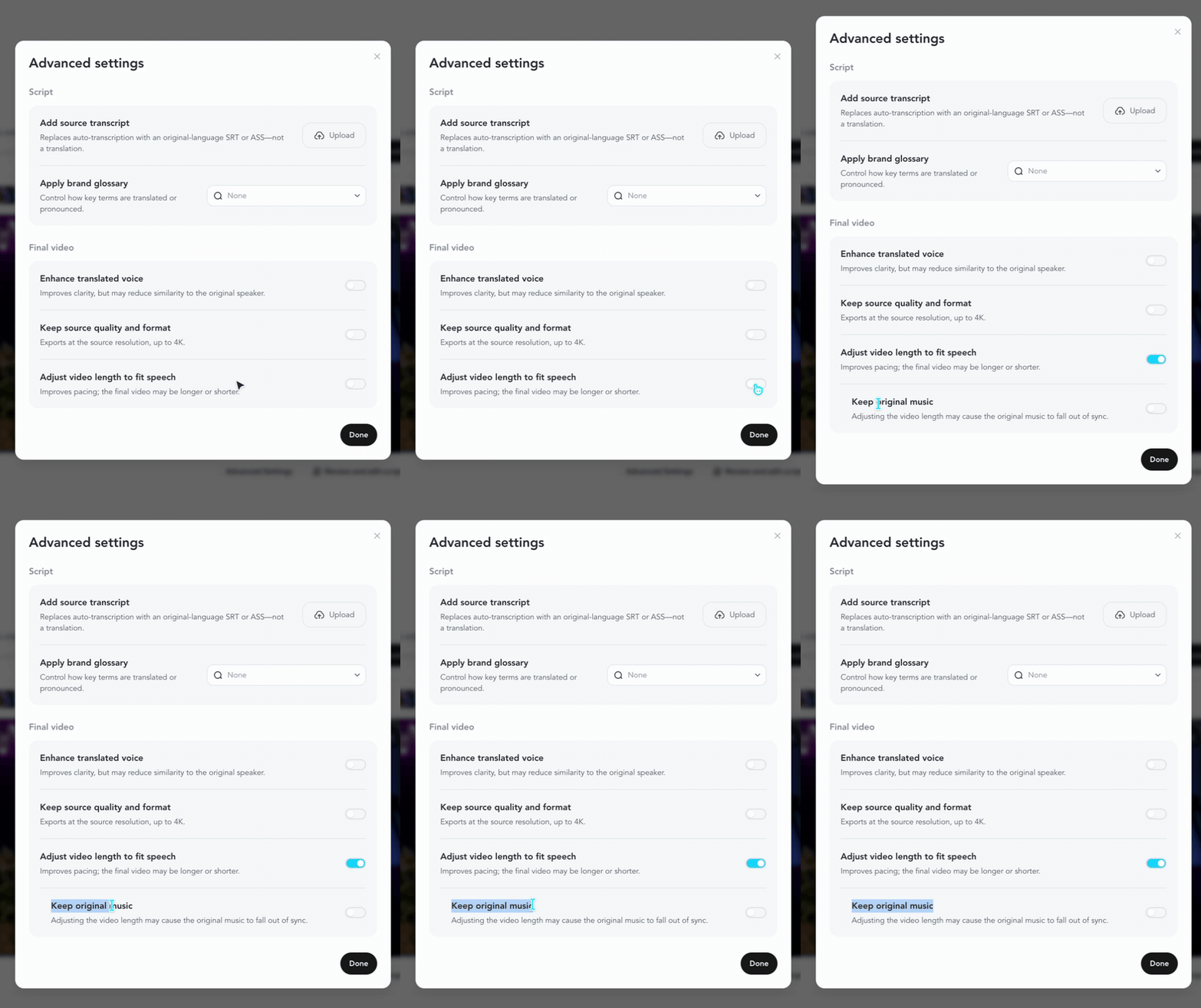
Advanced settings redesign
What it is: A redesigned Advanced Settings panel in Video Translate. Settings are grouped into clear sections (Script, Translated Audio, Final Video) and every option now has a plain-language description instead of an icon with a hover tooltip.
What users experience: When opening Advanced Settings before translating, users see a larger, easier-to-scan panel that explains each option in place — transcript upload, brand glossary, voice enhancement, source-quality output, and video length adjustment (with "Keep original music" shown only when length adjustment is on). No workflow changes — the panel is just clearer and simpler to use.
Proofread timeline view cleanup
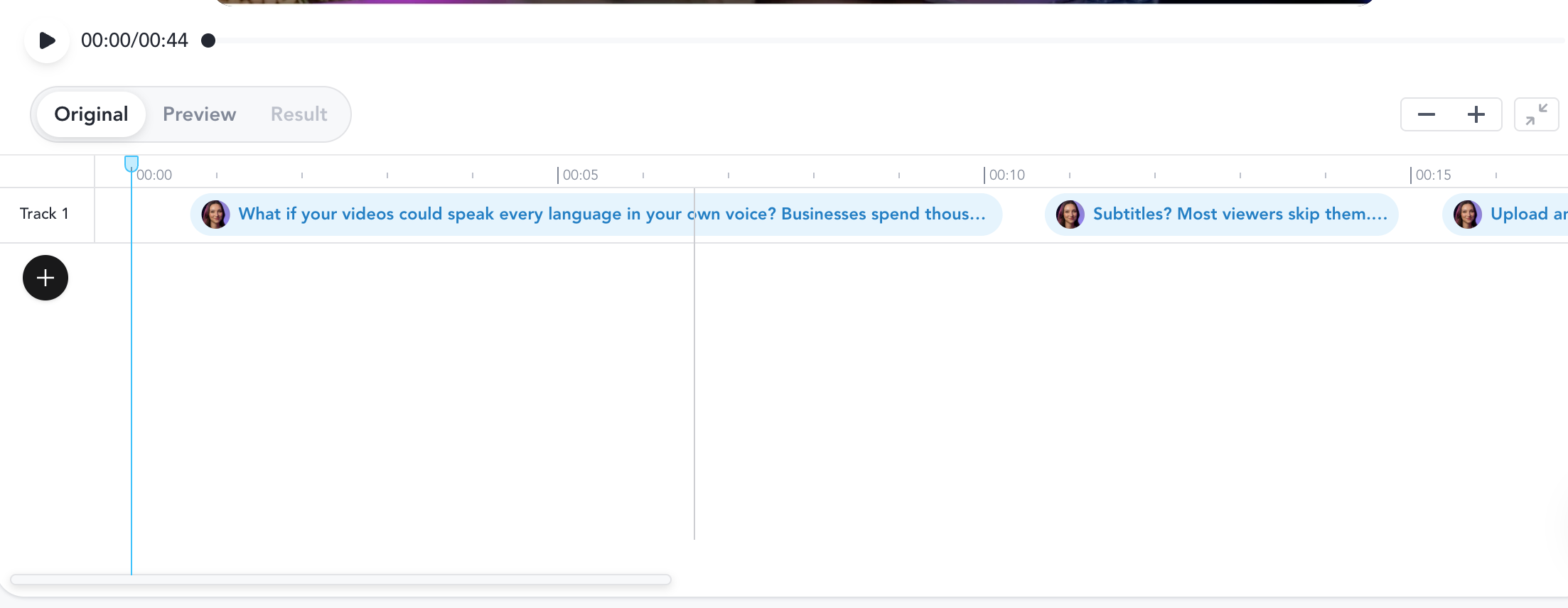
What it is: Removes the audio waveform bar (the "WAV" row) from the Proofread editor's timeline. Historically the waveform bar invited questions of “why is it not reflecting my translation text” and “why is background sound reflected too”. The team has decided to remove this component that added more confusion than value.
What users experience: The timeline no longer shows the waveform strip above the speaker tracks, giving a cleaner view with more room for the sentence and speaker rows. All editing, playback, and seeking work exactly the same — only the visual waveform row is gone.
Demo:
Proofread version clarity
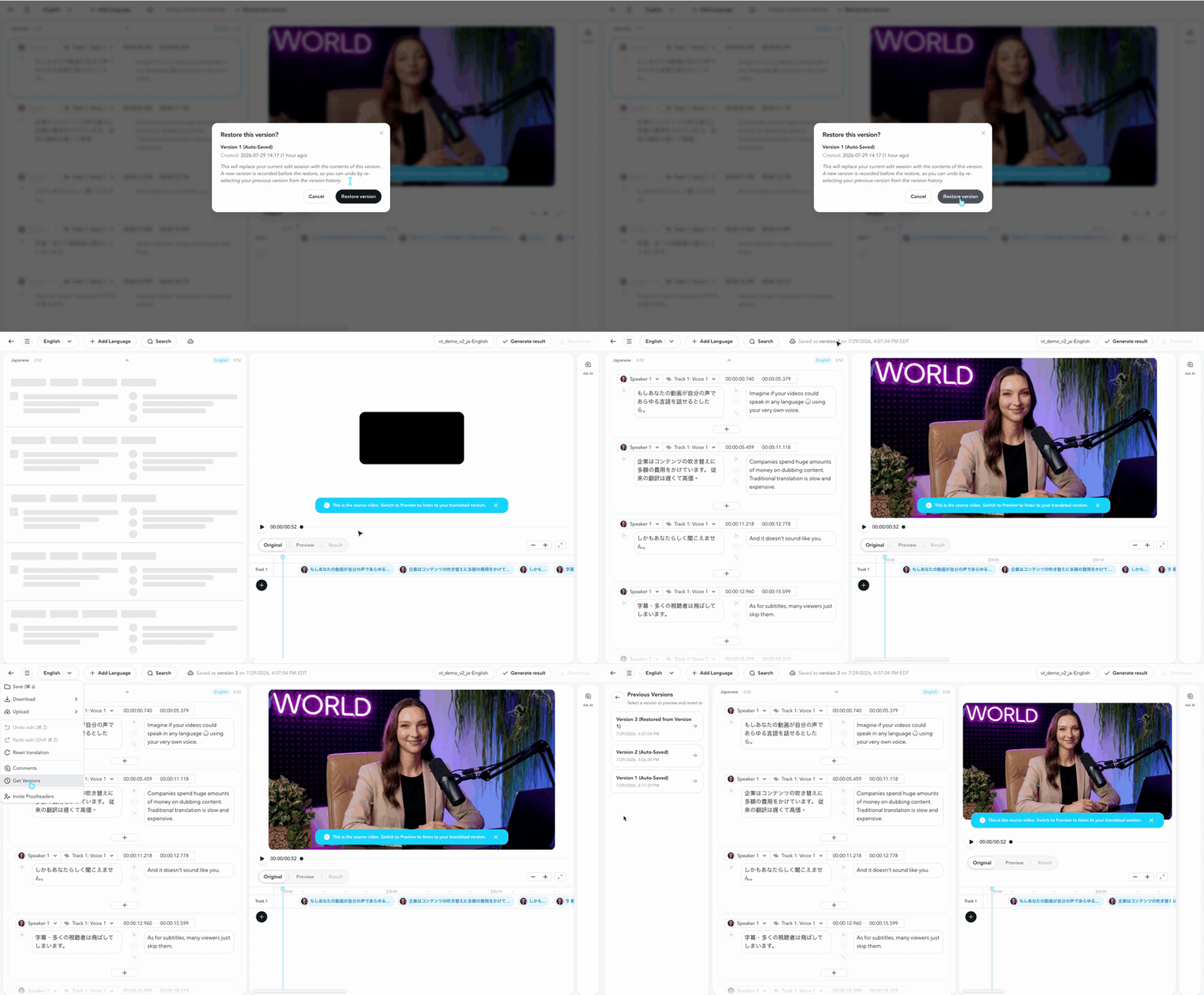
What it is: Full version tracking for Proofread. Version history gets one-click restore and clear labels (e.g. "Version 3 (Auto-Saved)", "Restored from Version 2"), and versions now surface throughout the editor: a save indicator, a version badge on the generated result, and stale results that stay viewable instead of being locked.
What users experience: As they edit, the header shows exactly what's saved — "Saved as version X on <date/time>" next to the save icon — and any earlier version can be reviewed and restored with one click, with the pre-restore state kept as its own version so nothing is ever lost. The Result tab shows a "Version X" badge telling them which saved version their current video was generated from; if the script has changed since, a "Stale" badge appears (with a tooltip suggesting regeneration) but the old result stays viewable for comparison instead of being disabled.
Demo:
Video podcast
Transform any doc, link, or idea into a professional two-host video show with studio scenes, dynamic multi-camera cuts, and cinematic B-roll. Ready in minutes—not hours. While everyone else stops at audio, you publish video.
2. Key Deprecations
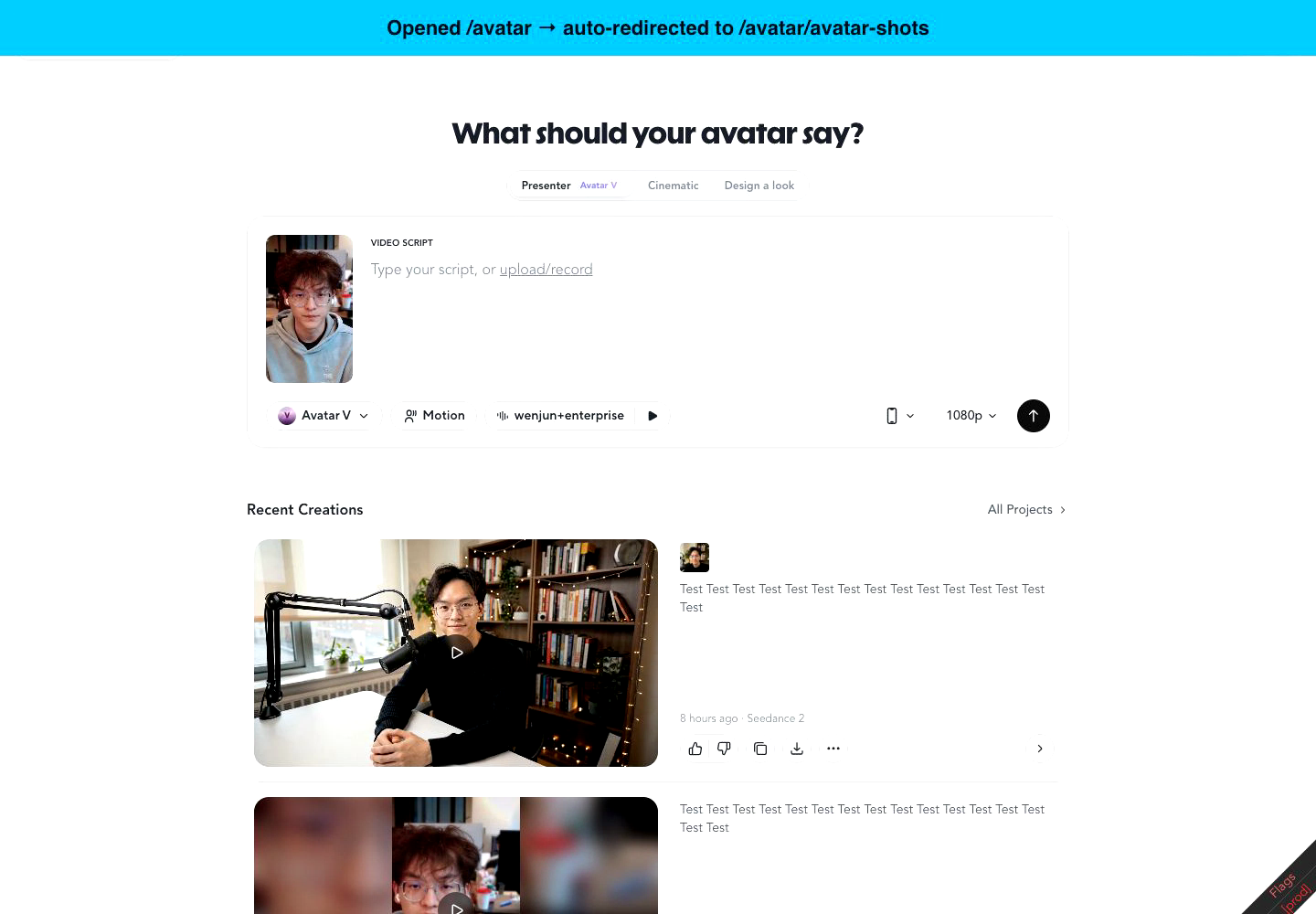
Quick Create avatar page — REMOVED → Now redirects to Avatar Shots
What it is: The Quick Create page that used to be under the Avatar left nav has been removed. All /avatar entry points now will redirect to Avatar Shots.
Did you like this update?


Leave your name and email so that we can reply to you (both fields are optional):
