November 2026 Enterprise Web Releases
1794423364806
Here’s what’s new in HeyGen this month, from admin and security controls to updates across creation, voices and translation. A few options are also being retired, so please check the dates under Retired this month. Take a few minutes to read through, and reach out to your account team with any questions.
Brand
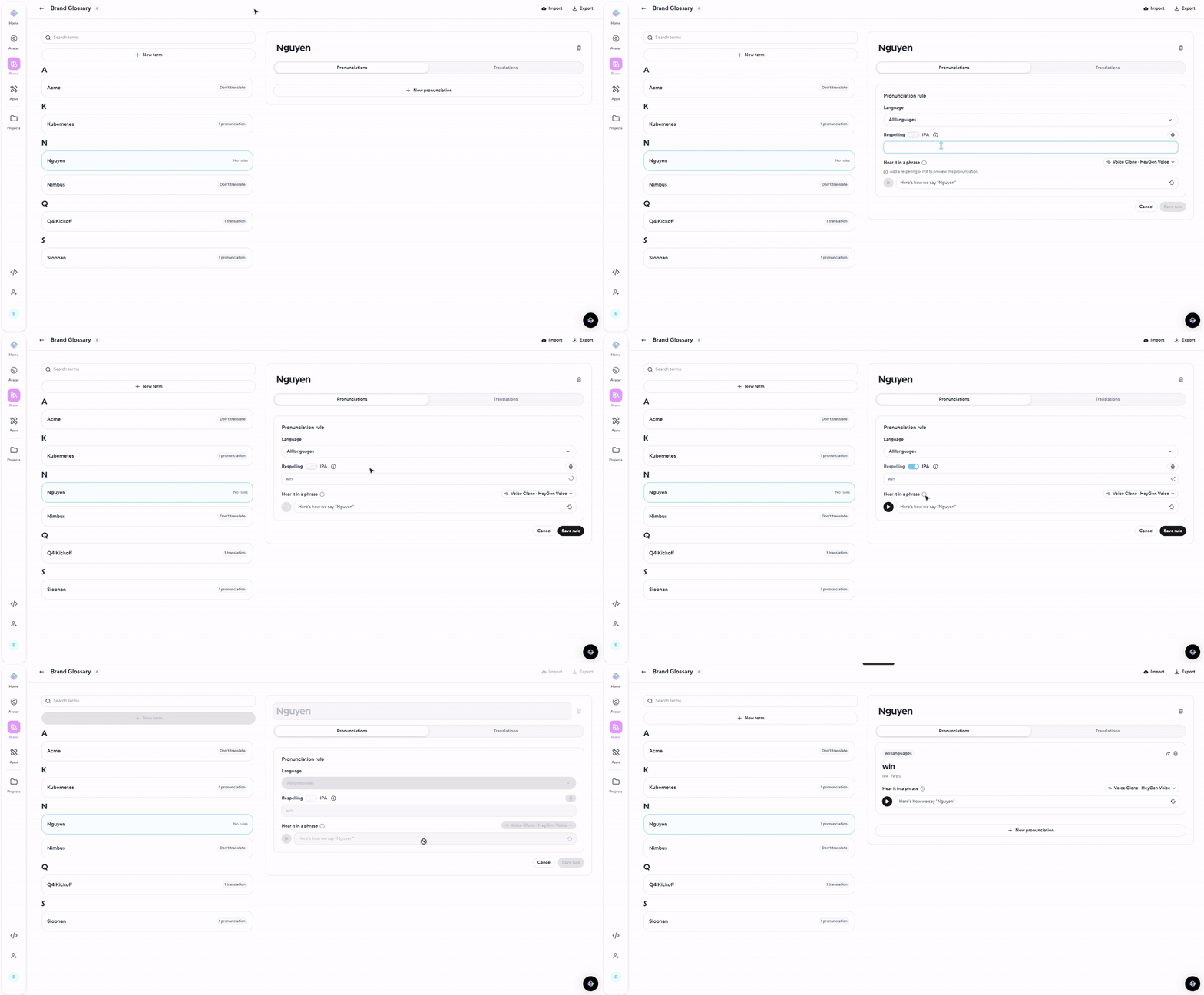
IPA pronunciations in the Brand Glossary
Glossary terms can now hold an IPA (phonetic) spelling alongside the respelling, so voices say names and product terms exactly the way you intend.
Open your Brand Glossary and select New term, or open an existing term.
Under Pronunciation, fill in Respelling (works with every voice), IPA (highest quality, on HeyGen Voice, ElevenLabs and Cartesia), or both. Fill in one and HeyGen generates the other for you to keep or edit. Record pronunciation fills in both from your microphone.
Listen with a HeyGen voice before you save.
AI Studio's pronunciation editor and Video Translate proofread both use IPA, and IPA is included in CSV and Excel import and export.
Admin, billing and security
Enterprise compliance
Enterprise admins can now see in one place how HeyGen handles their data. The new compliance page covers our certifications, data retention controls and how to ask for data to be erased.
Certifications: SOC 2 Type II (2025 report and 2026 bridge letter), SOC 3, GDPR, CCPA and the Data Privacy Framework. The reports are in the Trust Center.
HIPAA: Available on Enterprise plans once a Business Associate Agreement is signed.
AI training: Enterprise data is left out of AI training by default.
Zero Data Retention: API content is deleted automatically after a set window, from 24 hours to 100 days. It’s turned on for each workspace or subspace under a ZDR addendum. Avatars, voices, brand kits and templates stay until the customer deletes them.
GDPR data requests: A workspace admin can ask us to erase data for the whole workspace or for one person. The admin gets an email when we receive the request. A second email gives the erase date and a link to download a copy of the data first, and a third confirms the erase is done. This covers videos, drafts, uploads, translations, voices, Video Agent sessions, profile history and other product data.
Coming next: EU AI Act transparency (invisible watermarks, provenance metadata and a way to check them) by December 2, 2026, and an accessibility report (VPAT) for the HeyGen app.
Learn more: https://www.heygen.com/enterprise/compliance
Usage by member
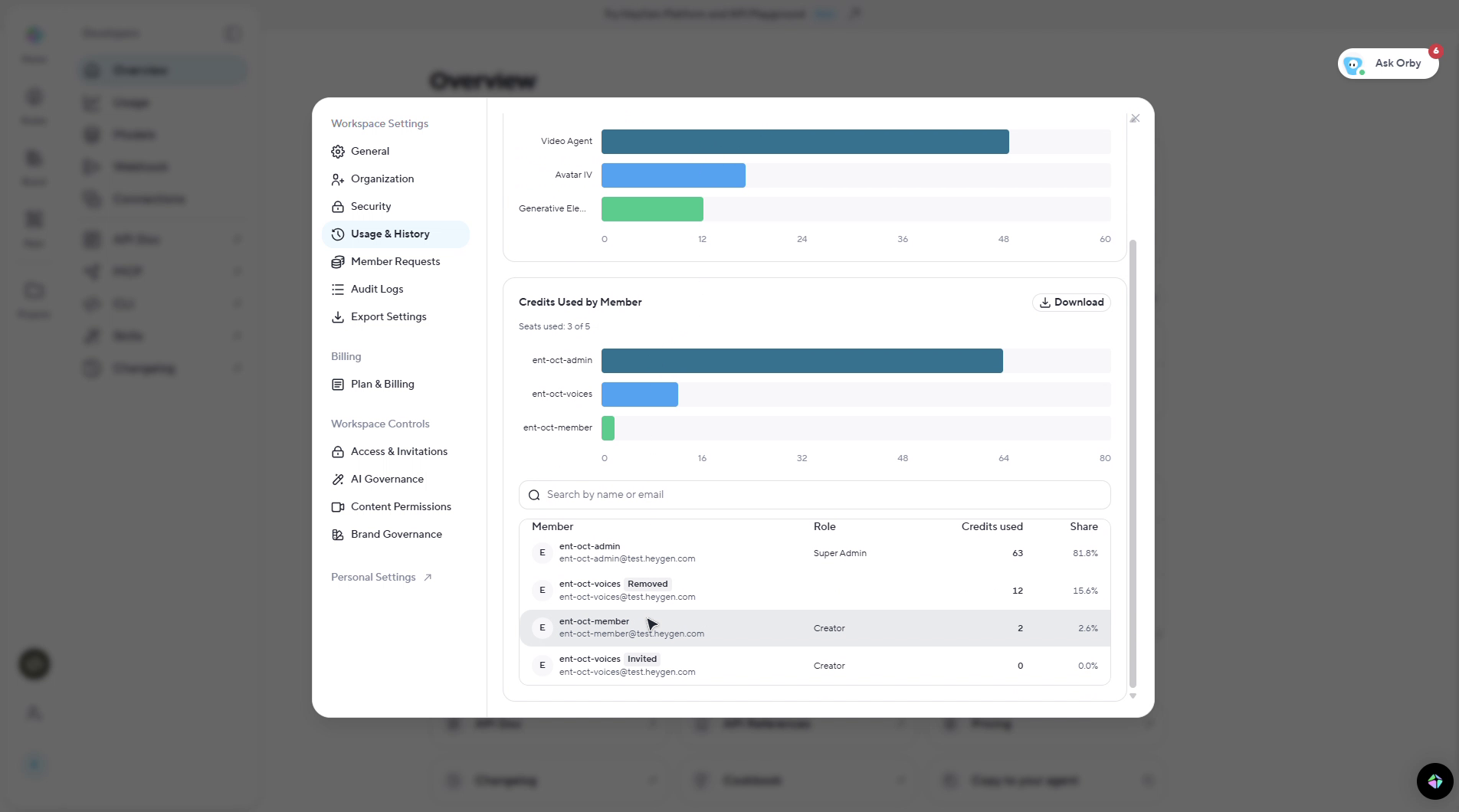
Admins can see how much each member has used, including members with no usage, invited members and members who have left.
Go to Settings → Usage & History → Usage and select See Usage Details.
The Used by Member card lists each member's role, status (Active, Invited or Removed), minutes used and share of the total, with seats used at the top.
Search by name or email, or select Download for a CSV of the full roster.
Sign out after inactivity
If your security policy requires it, your HeyGen account team can set an inactivity limit for your workspace, anywhere from 5 minutes to 24 hours. Members are signed out after that long without using HeyGen in any tab, and go straight back to the page they were on when they sign in again. The limit also applies to sub-workspaces. Contact your account team to set it up.
Apps
Avatar 6 (early access)
Avatar 6, our next-generation avatar model, is now in early access for all enterprise workspaces, ahead of its public launch on November 17. It reads your script and matches gestures and delivery to what’s being said, so your avatar moves more naturally than with Avatar 4 and Avatar 5.
More realistic: Lip sync, motion and overall realism are better than in Avatar 4 and Avatar 5.
Gestures that match your script: Pointing, counting and directional motion that follow what’s being said.
More varied movement: Fixes the repeated gestures many of you flagged in Avatar 4 and Avatar 5.
To try it, pick Avatar 6 as the avatar engine when you create a video. Your existing avatars keep their current engine until you switch them.
Voice panel opens as you write
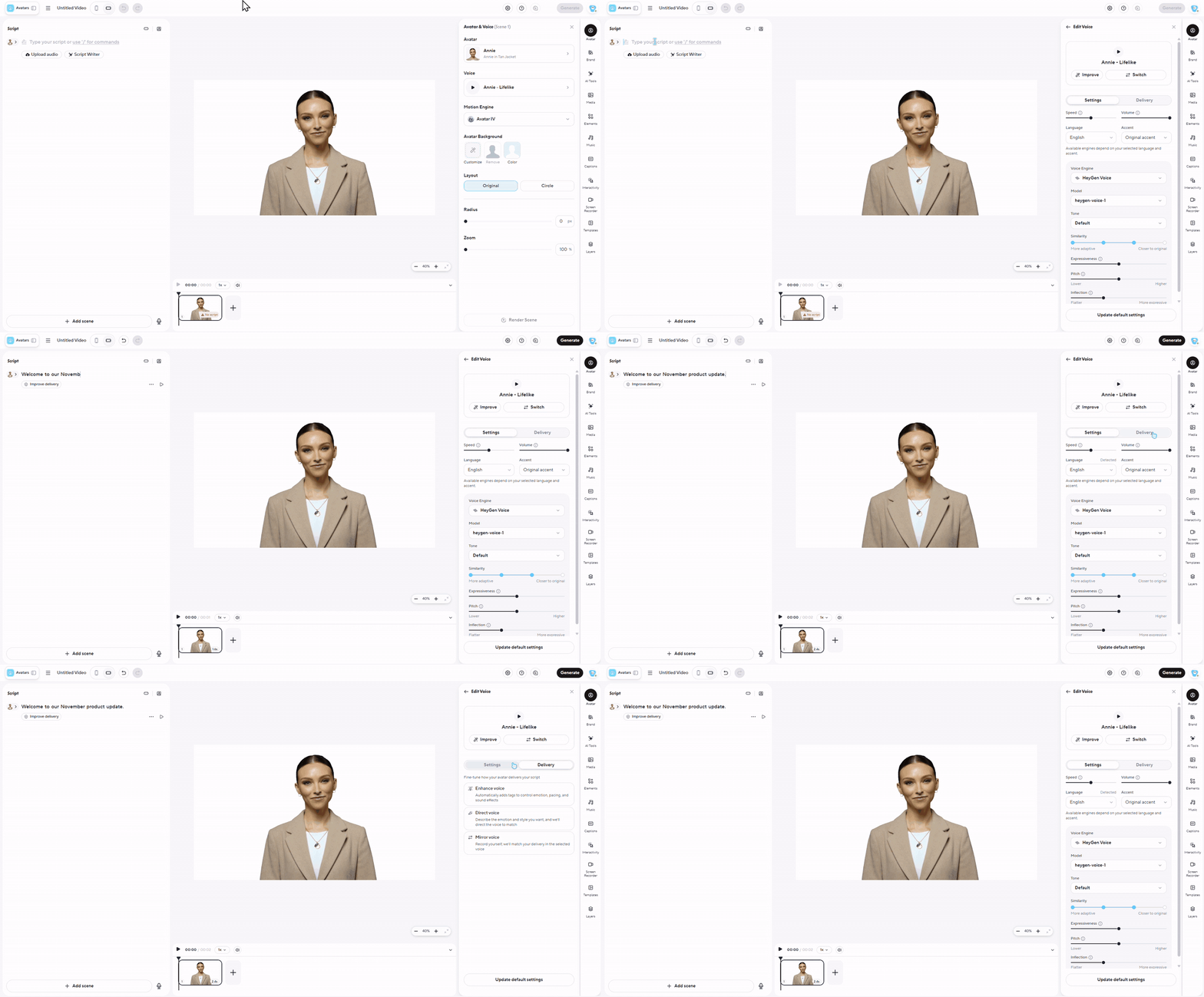
Click into a scene's script in AI Studio and the Edit Voice panel opens beside it, with Settings and Delivery tabs, so you can pick and tune the voice while you write. It stays open until you choose another tool.
Creative Studio
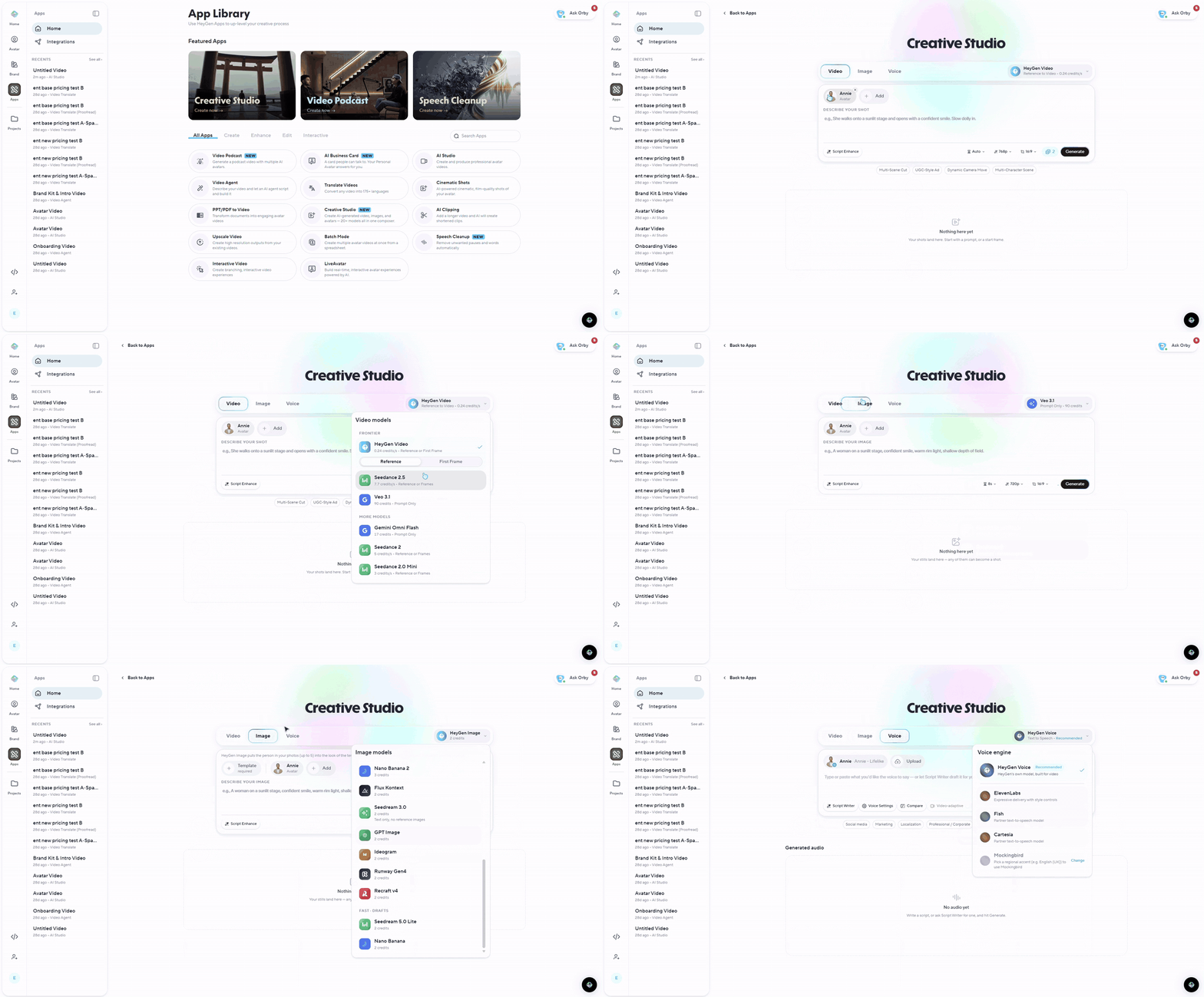
AI Video Generator and Generate Images are now one app: Creative Studio. Find it on Apps, with video, image and voice in one composer and more than 20 models to choose from. Links and bookmarks to the old apps open the matching tab in Creative Studio.
Motion presets in Avatar Video
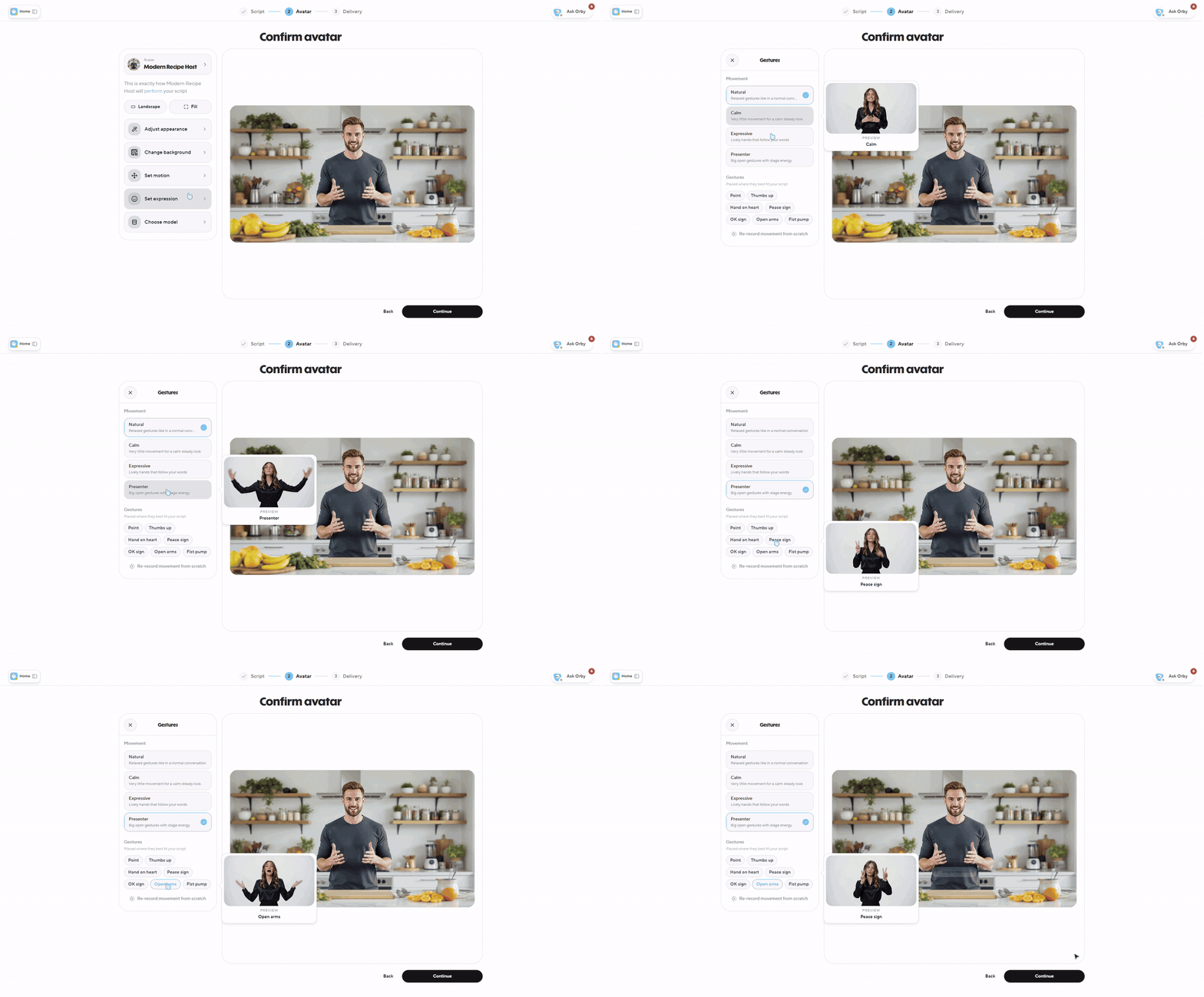
Direct how your avatar moves. In Avatar Video, on the Avatar step, open the Gestures panel:
Movement: Natural, Calm, Expressive or Presenter.
Gestures: Choose up to three from Point, Thumbs up, Hand on heart, Peace sign, OK sign, Open arms and Fist pump. HeyGen places them where they best fit your script.
Video Agent
Recreate a video
Start from a video you like and make it your own.
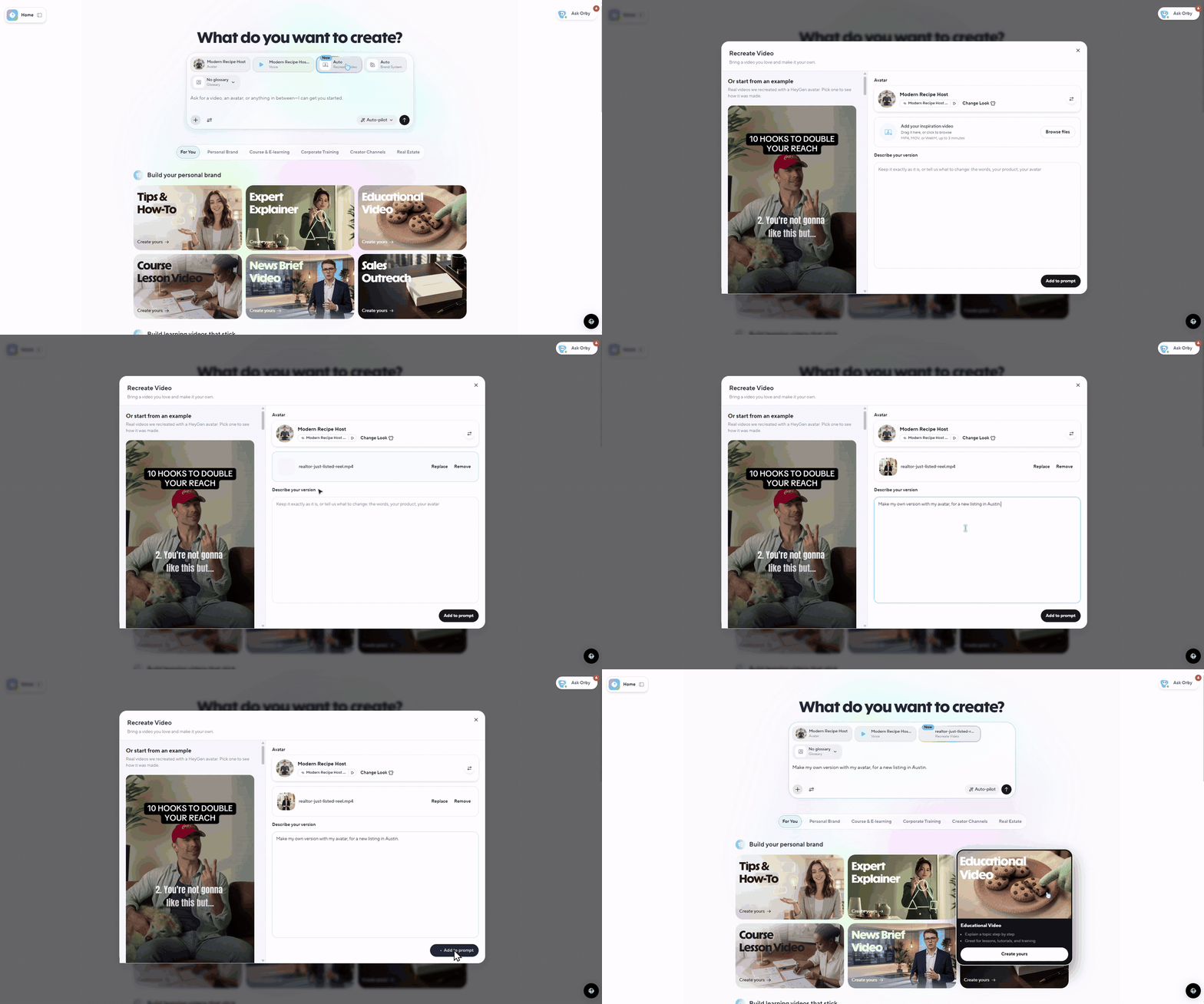
In the Video Agent prompt box, select Recreate Video.
Add your inspiration video (MP4, MOV or WebM, up to 3 minutes).
Optionally choose your avatar, then describe your version.
Select Add to prompt, then send. Video Agent rebuilds it scene by scene with your avatar and content.
Video Agent 2.5
Video Agent now runs on version 2.5, with smarter planning, sharper edits and richer motion graphics. It works the same way as before, so there's nothing to set up.
Follows your direction more closely, from script to scene plan.
Understands your uploads, looking through your images and clips frame by frame.
Edits change only what you ask for, without rebuilding the video.
An upgraded engine for motion graphics.
Voices
Compare voice engines side by side
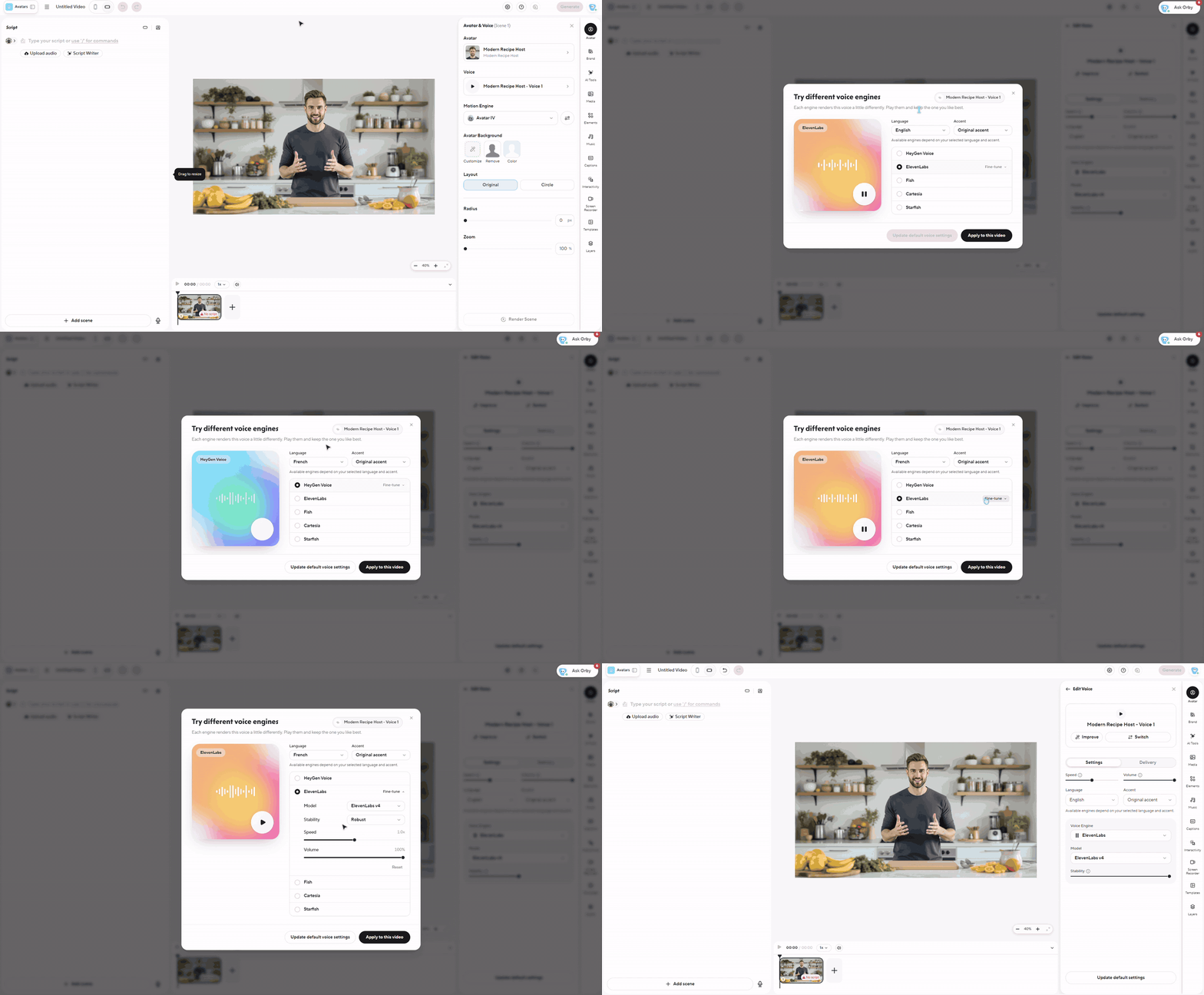
Improve voice now opens Try different voice engines, wherever you start: AI Studio, Video Agent, the Voices page or your avatar's Voice tab.
Select Improve voice on any voice.
Play the voice on each engine and keep the one that sounds best. Set Language and Accent, and open Fine-tune for more control.
Select Apply to this video or Update default voice settings. On your avatar's Voice tab, Re-record audio and Professional Voice Clone are in the footer if you want a better source recording.
Video Translate
A new Proofread layout
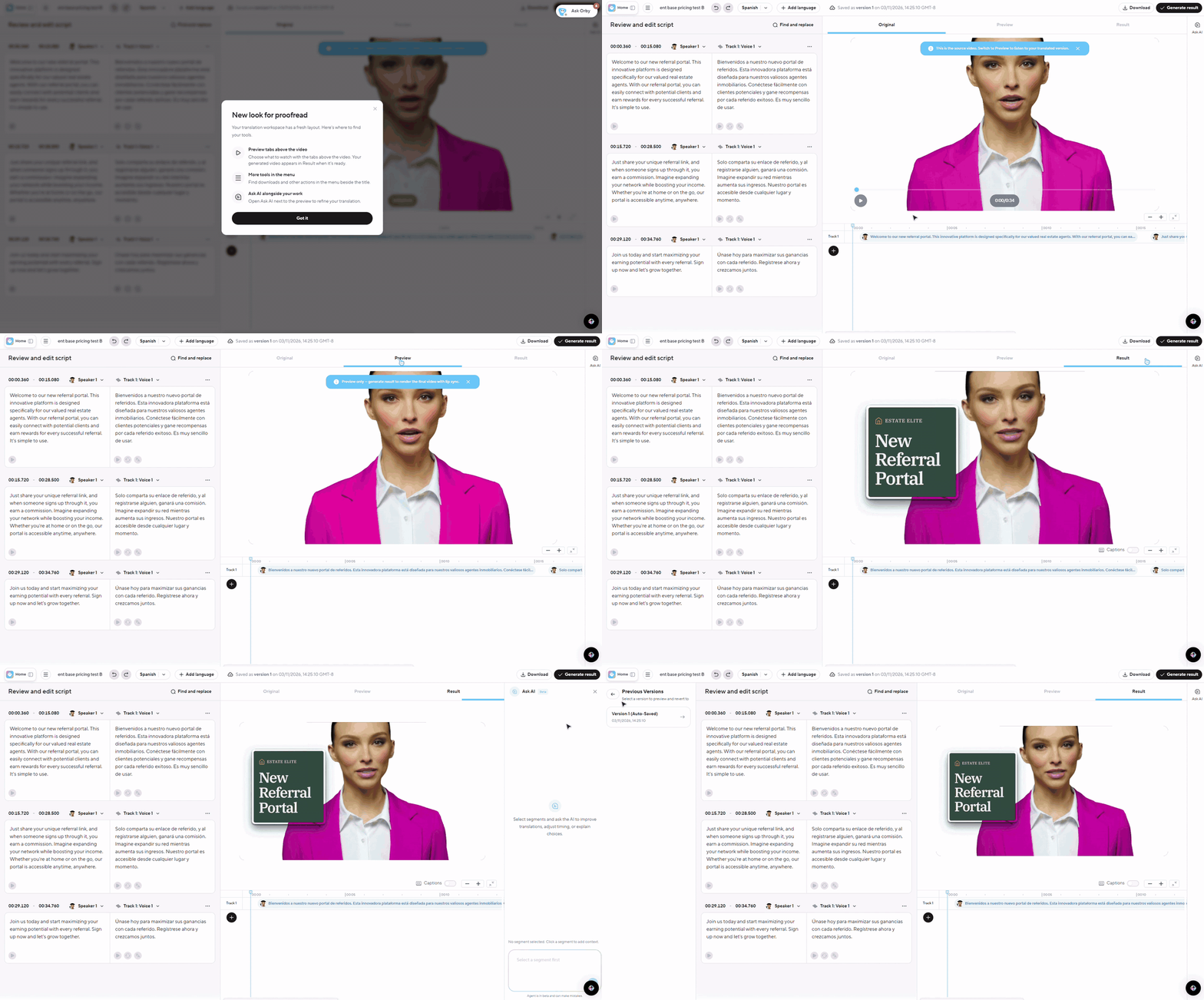
Proofread has a cleaner layout, with your tools where you need them.
Preview tabs above the video. Switch between Original, Preview and Result. Your finished video appears in Result when it's ready.
One menu for actions. Downloads, uploads and other actions are in the menu beside the title.
Side panels.Ask AI opens next to the preview, so you can refine a translation while you watch it. Get Versions in the menu opens Previous Versions beside the script.
Controls on the video. Playback controls sit on the video itself.
A short New look for proofread note shows the first time you open it.
Voice and language check
If you pick a voice in Proofread that can't speak your translation's language, Check your scriptlanguage appears before the voice is saved. Select Edit voice to open Improve Voice set to the target language and switch to an engine that speaks it, or Ignore to keep your pick.
Help
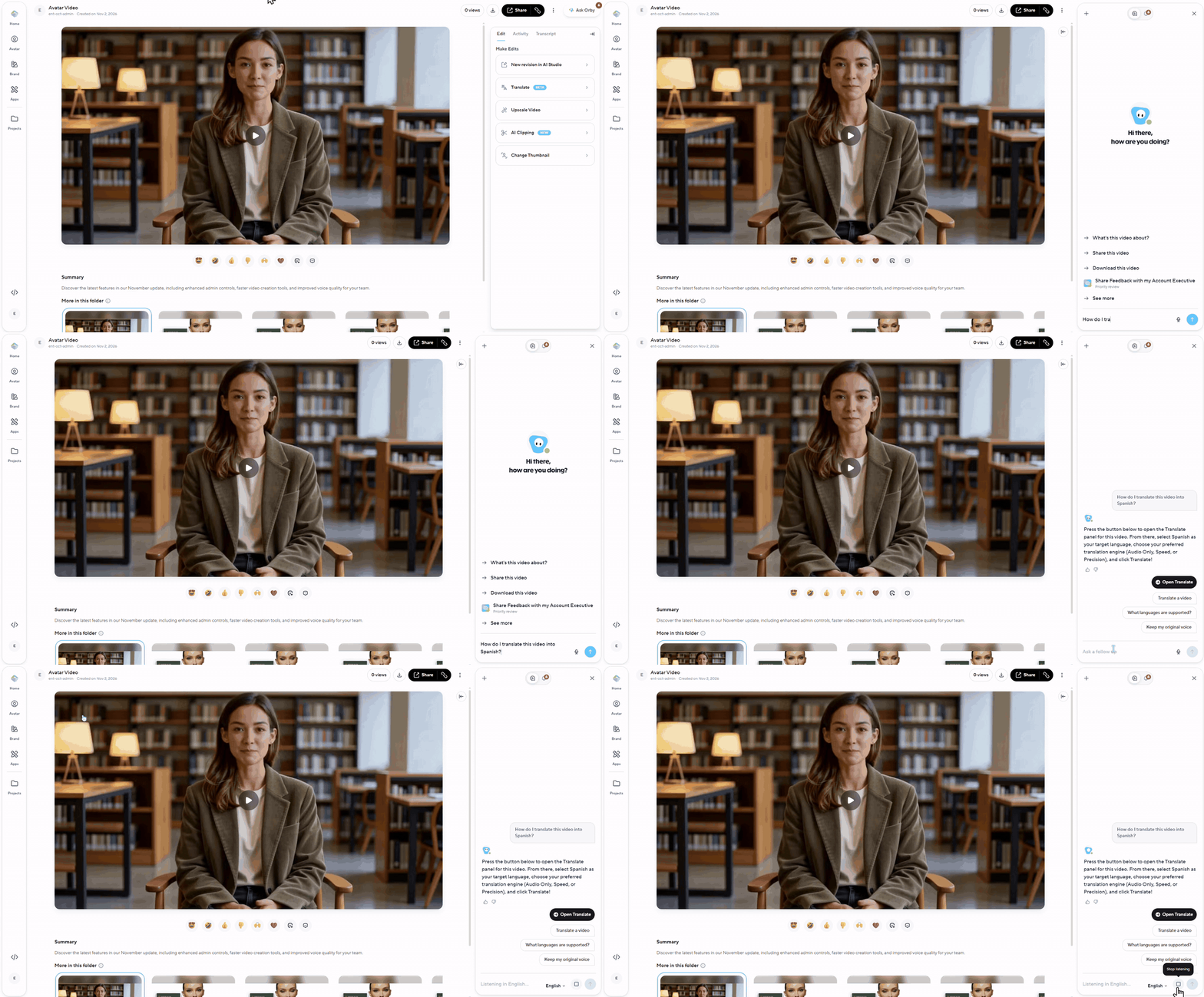
Ask Orby, from more places
On the video page. Select Ask Orby at the top right of a finished video to ask about it without leaving the page.
On your phone. Open Ask Orby from the menu for a full-screen chat.
By voice. Select the microphone, or hold O, to talk instead of typing (Chrome, Edge and Safari).
Smaller improvements
Clearer avatar deletes. On your avatar's page, deleting a motion or look now explains what changes and offers a better option where there is one, such as Re-record motion or Verify now. The first time you open an updated avatar page, We've improved your avatar page shows you around.
Two-factor authentication is now turned on or off with a code sent to your email.
Retired this month
A few options were retired this month. Most of them need nothing from you. Where something does, the steps are below.
Voices
Older voice engines: Several voice engines are retiring. While an engine is retiring, you'll see a Deprecated badge on it and a notice when you pick it. On the shutdown date it stops working and its scenes can't be generated until you switch. Videos you've already made aren't affected.
Engine or model | Notice from | Stops working | Switch to |
|---|---|---|---|
AWS | Oct 25 | Nov 2 | Mockingbird, HeyGen Voice or ElevenLabs v4 |
OpenAI | Oct 28 | Nov 6 | HeyGen Voice or ElevenLabs v4 |
OpenAI (Emo voices) | Oct 25 | Nov 13 | HeyGen Voice or ElevenLabs v4 |
Fish S1 model | Oct 25 | Nov 15 | Fish S2.1 Pro |
HeyGen Voice, heygen-voice-0 model | Oct 26 | Nov 15 | heygen-voice-1 |
Nov 3 | Nov 20 | Mockingbird, HeyGen Voice or ElevenLabs v4 | |
Gemini | Nov 3 | Nov 30 | Mockingbird, HeyGen Voice or ElevenLabs v4 |
LMNT, PlayHT, ByteDance, Dolphin and Hume have already shut down.
What to do: Before the dates above, open each voice you use on these engines, select Improve voice (or Change Model in the notice), and pick the suggested replacement. Your account team can help you find the voices your workspace uses.
AI Studio and avatars
4K export with Avatar IV and Avatar V: Avatar IV and Avatar V render at 1080p, so 4K export is no longer offered for drafts that use them. The 4K option is greyed out and its tooltip names the scenes. 2K stays available, and drafts without Avatar IV or Avatar V keep 4K.
Instant avatars move to a new model: Instant avatars now use our newer Instant Avatar V2 model, in step with the rest of HeyGen.
Roles
Developer role: Developer and Creator are now one role: Creator. They only differed in API access, which Creator now includes. Members who were Developers now show as Creator, and identity provider role mappings follow.
Did you like this update?


Leave your name and email so that we can reply to you (both fields are optional):
