October 2026 Enterprise Web Releases
1791908900635
Here's what's new in HeyGen this month. Admins can now set usage limits for each member and answer their requests for more. Teams can work on one Video Agent session together. The Brand Glossary has been rebuilt, and we've added new SSO and brand controls plus more ways to fine-tune your voices. Take a few minutes to read through, and reach out to your account team with any questions.
New Features and Updates
Admin, billing and security
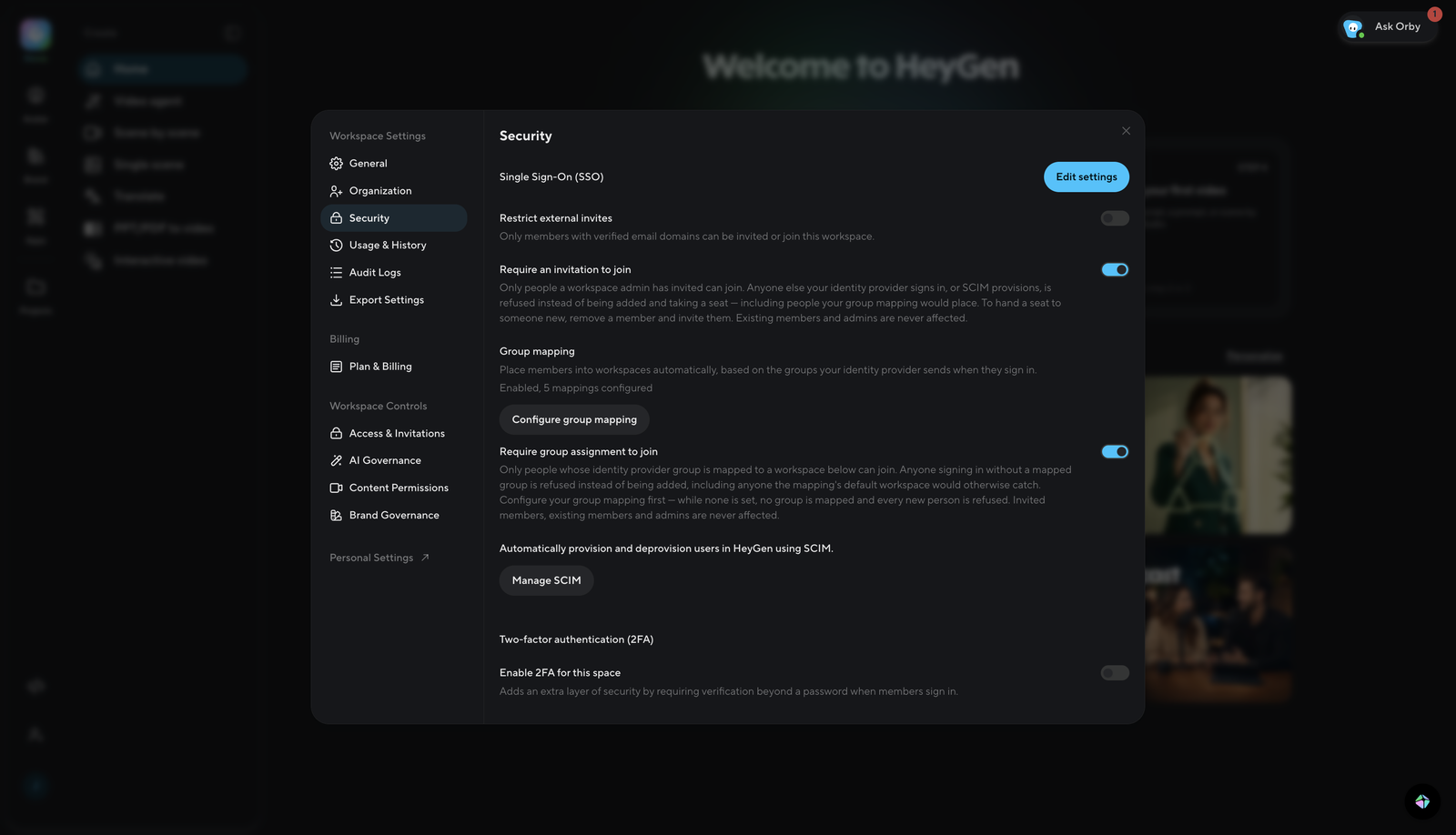
SSO join controls
Two new toggles in Settings → Security & SSO decide who gets a seat when they sign in through your identity provider. Both are off by default.
Existing members and admins keep their access.
Member usage limits and requests
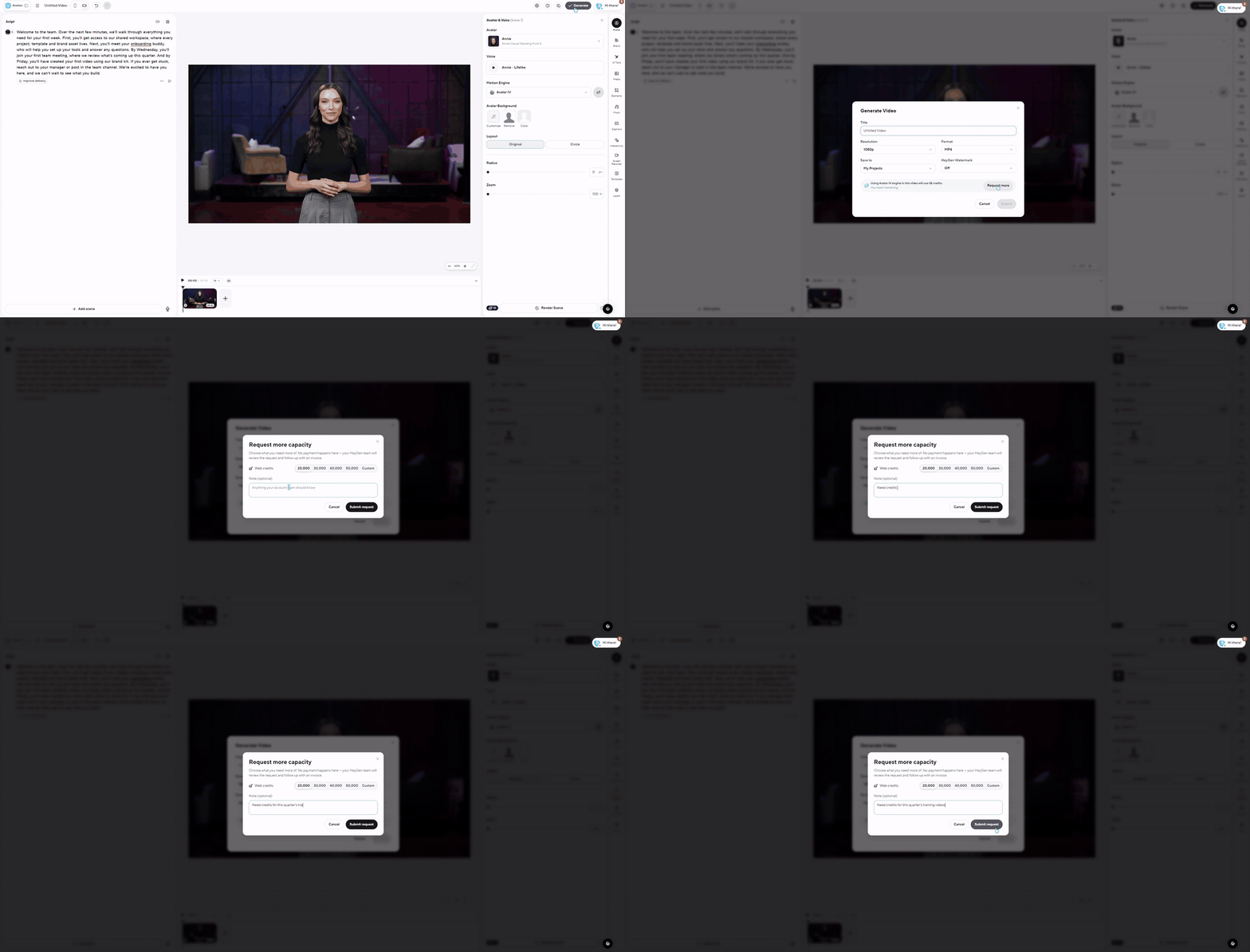
Admins can now set how much each member can use, and members can ask for more without leaving HeyGen.
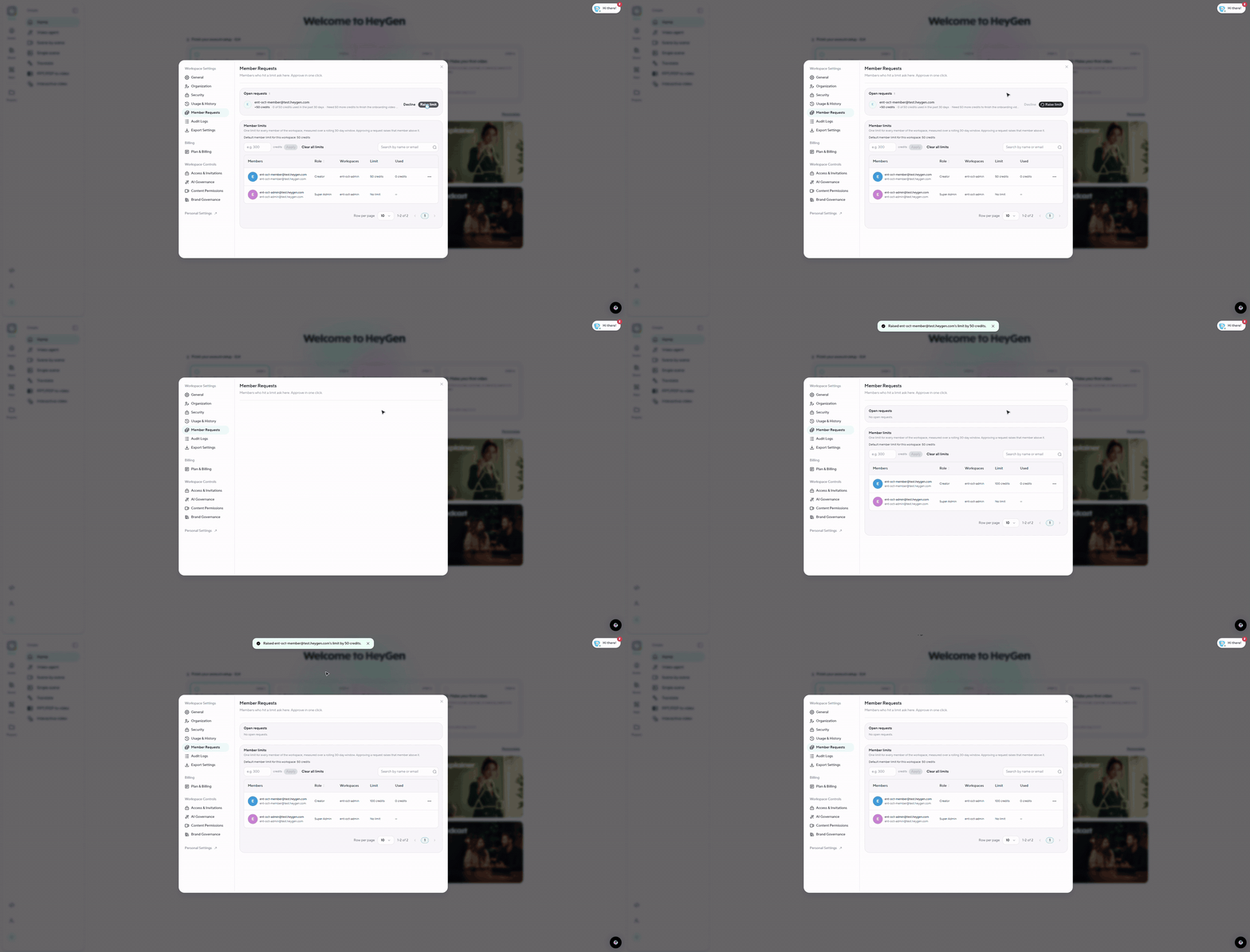
For admins: a new Settings → Member Requests page has two parts. Open requests lists every request with the member's note, so you can Raise limit or Decline in one click. Member limits sets one limit for every active member, and shows how much each person has used this period. You get a notification when someone sends a request.
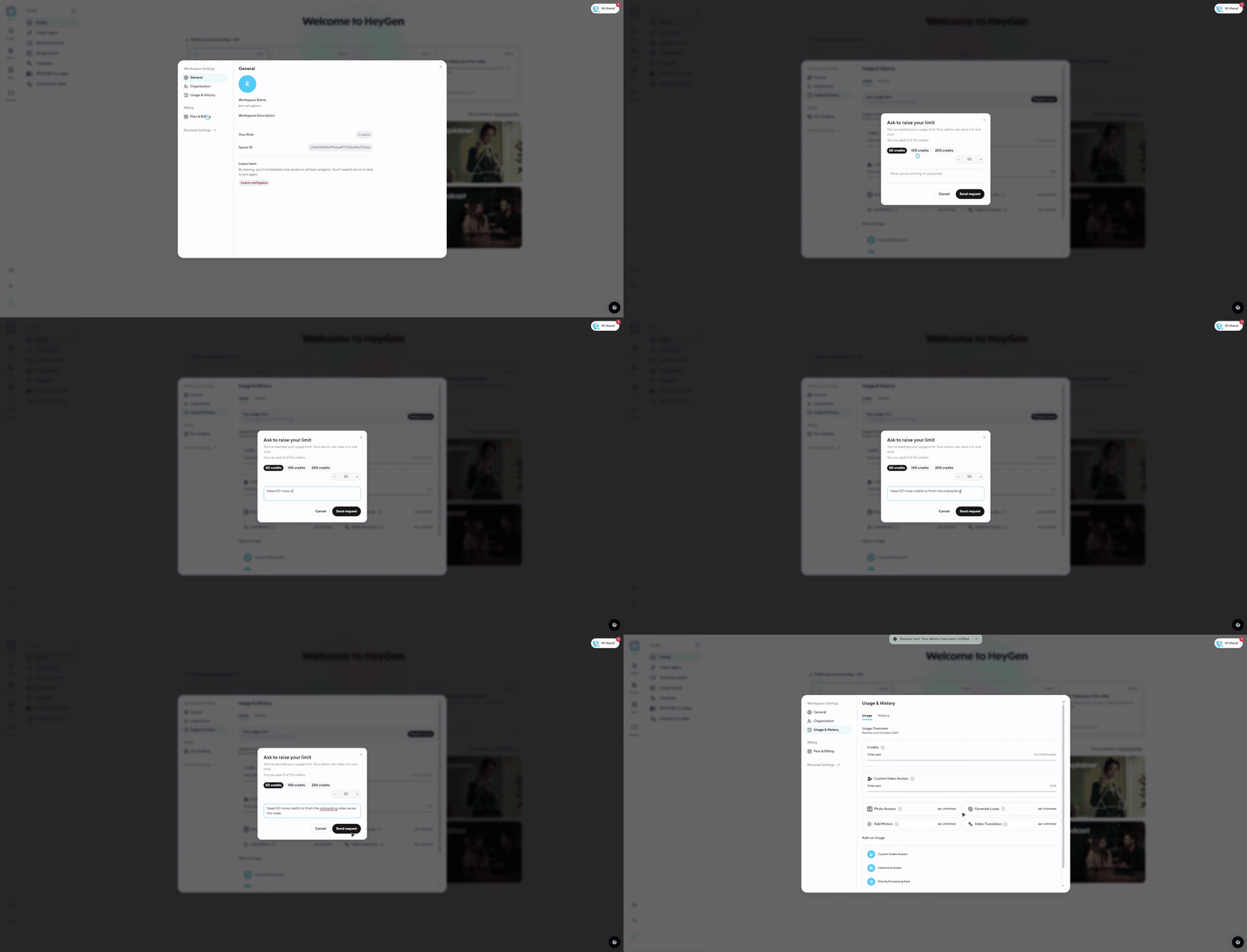
For members: Usage & History shows your limit and how much you've used. Select Request more, pick an amount and add a short note. If a video would go over your limit, the same request opens automatically. When your admin approves or declines, you get an in-app notification.
For admins (add to the admin paragraph above): When a member asks for more, you get an in-app notification. Open it to review the request in Member Requests, then approve or decline in one click.
Request more capacity
Instead of Contact Sales, admins now see Request more. Pick what you need (seats, video minutes or credits, or avatar slots), say how much, and add a note. Your HeyGen account team gets the request and follows up.
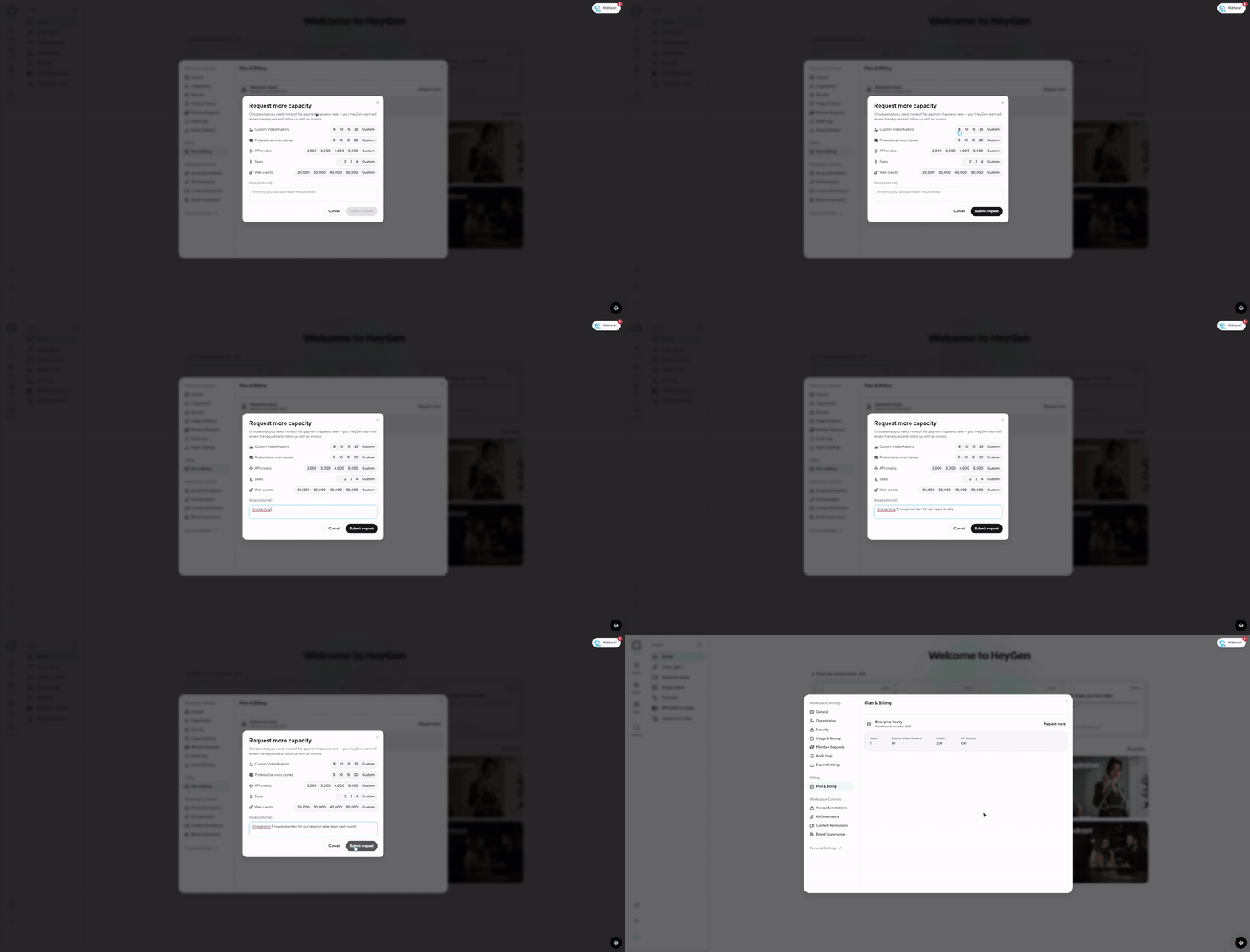
You'll also see Request more wherever a limit shows up: when a video needs more minutes than you have left, and on Usage & History, Organization and Manage Seats.
Brand
Brand Glossary, rebuilt
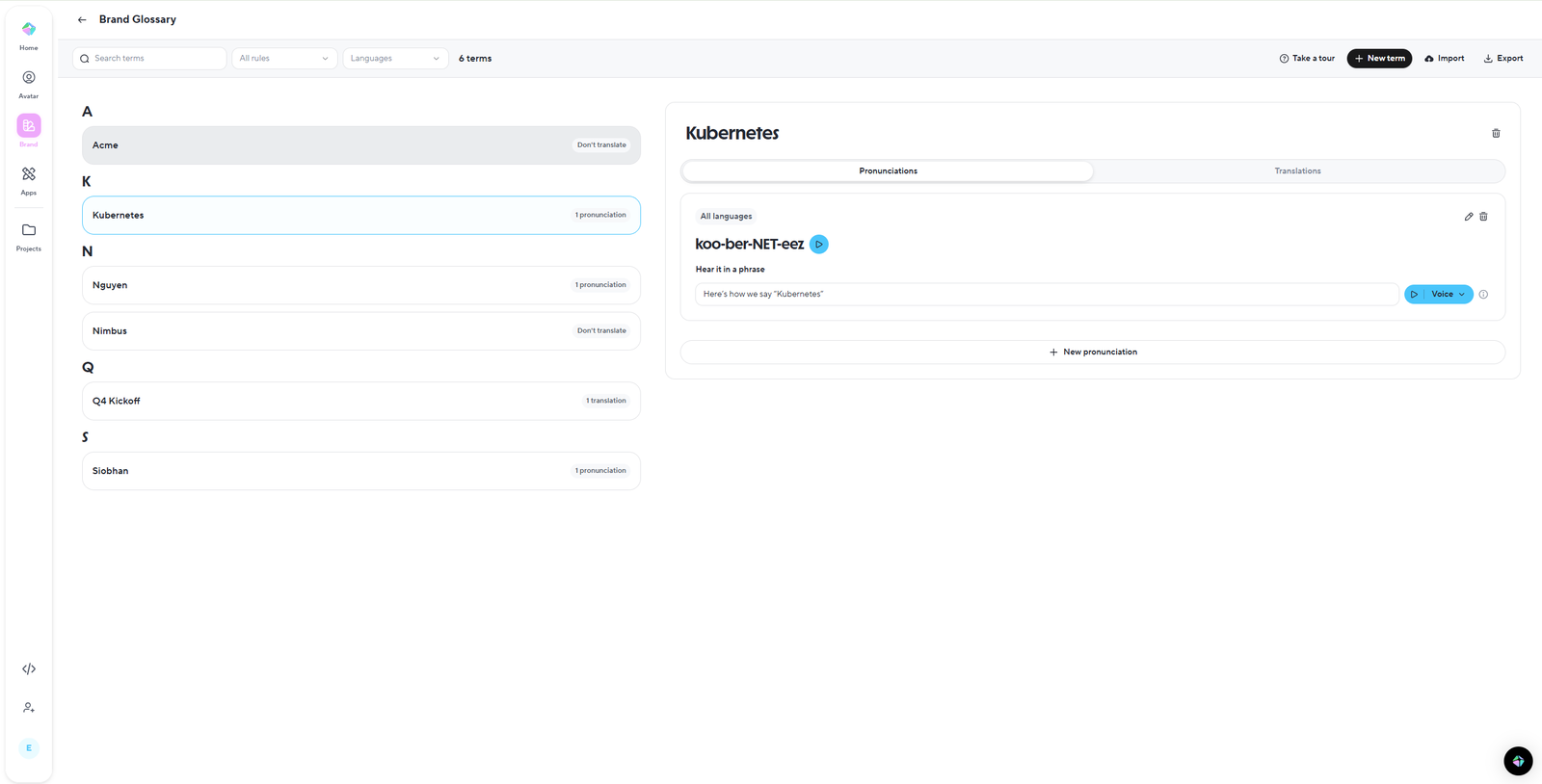
The Brand Glossary has been rebuilt for teams that manage hundreds of terms across languages.
Language-aware terms. Each term can hold its own pronunciation and translation rule for every language. Videos made with your brand glossary use the right one for the video's language automatically.
Organized by term. An A to Z list with filters for rule type and language, so you can find any term quickly.
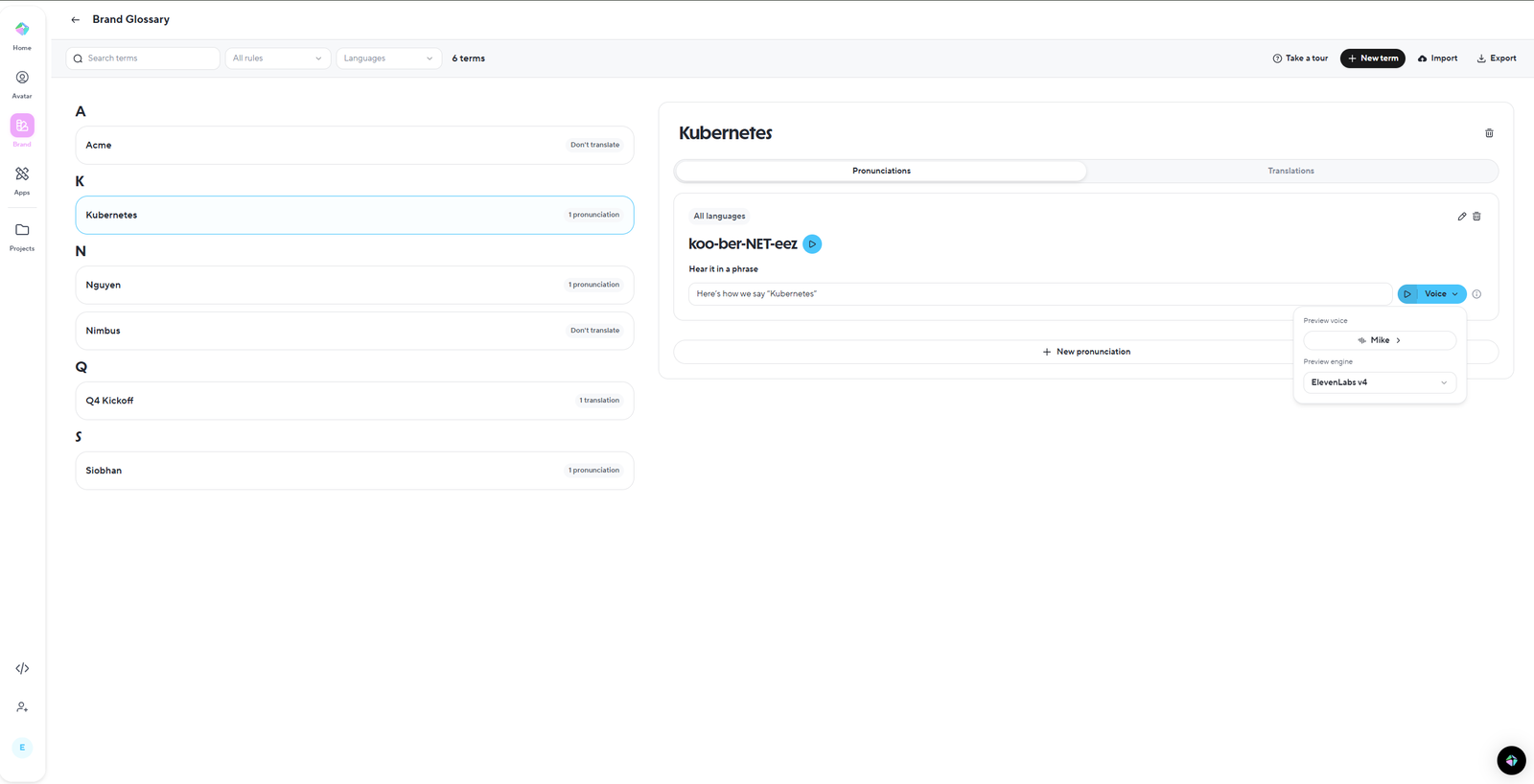
Pronunciations you can hear. Type a pronunciation, or record it with your microphone, then select Hear it in a phrase to listen with a HeyGen voice and engine before you save.
Translations in one place. Set "don't translate" or "always translate as" for each language, right next to the term.
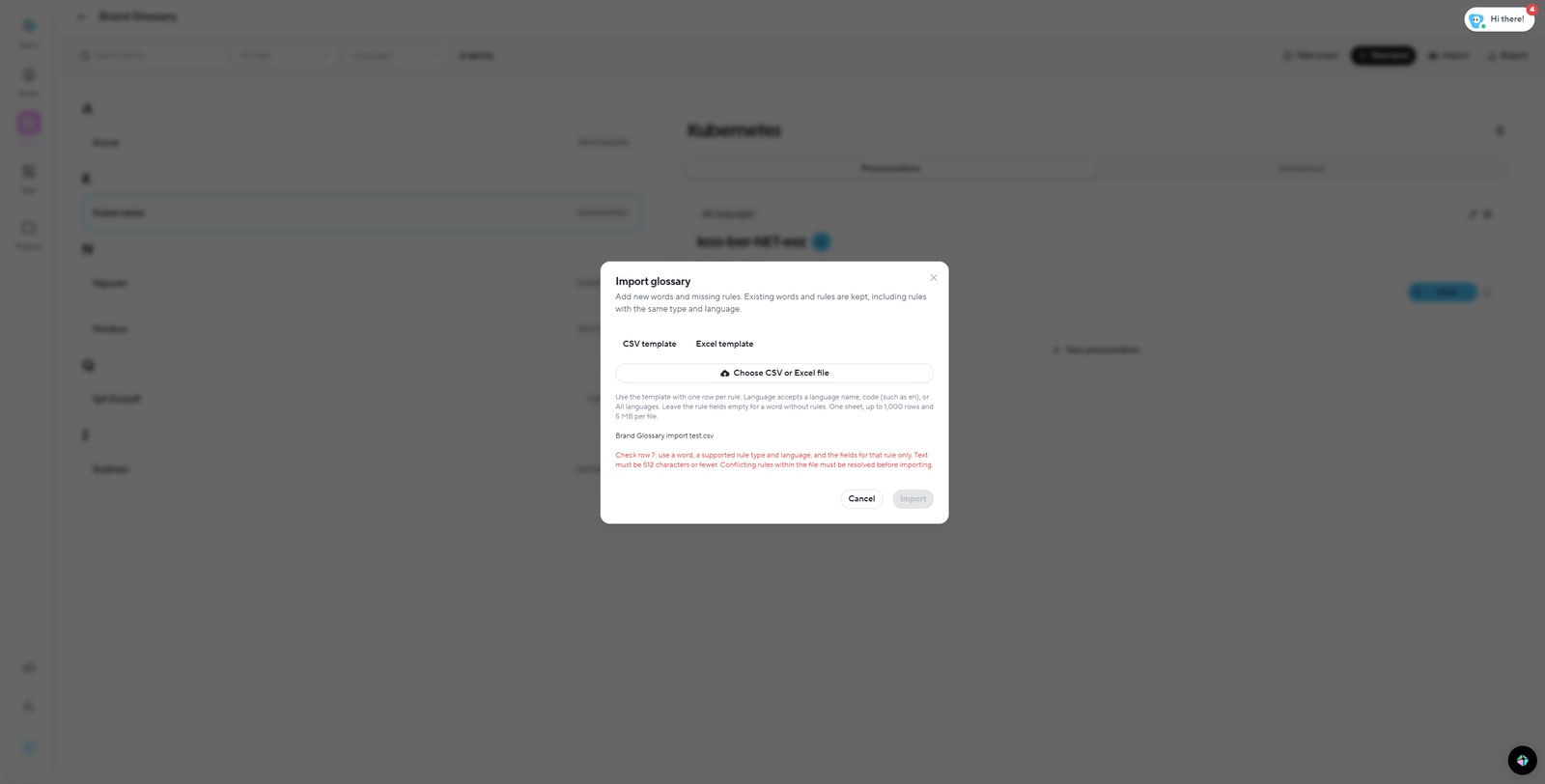
Spreadsheet import and export. Bring a glossary in or out as CSV or Excel. The whole file is checked first, and any row with a problem is clearly marked.
Video Agent and creation
Collaborate in Video Agent
Teams can now work on one Video Agent session together.
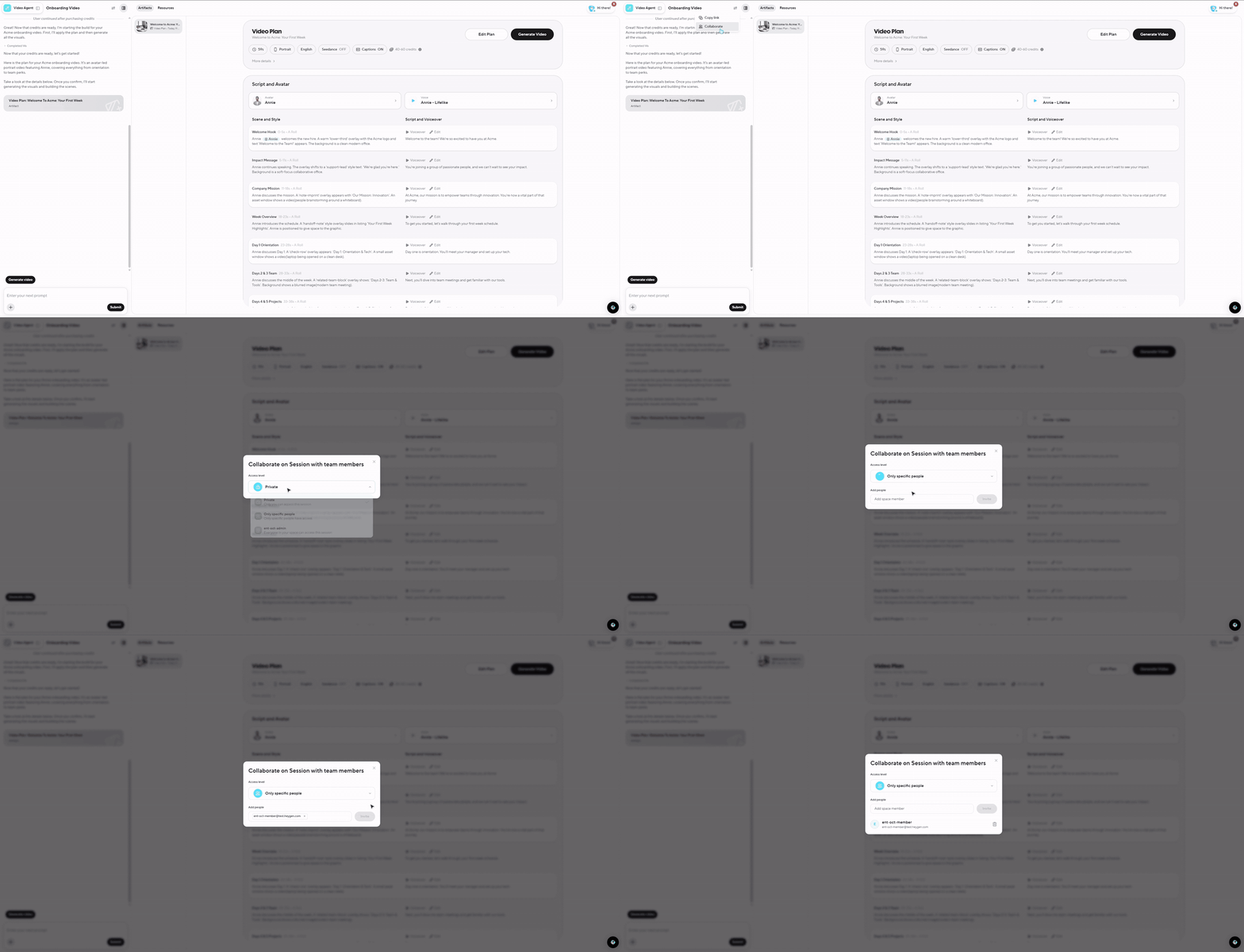
Collaborate. The session header has a Collaborate button that opens the same sharing window you know from AI Studio. Add teammates by name or email, or share with the whole workspace. Everyone you add can view and edit the session.
Editors can drive the session. Anyone you add can send prompts and keep building the video with you.
One editor at a time. If someone else is editing, or you have the session open in another tab, you'll see a notice and the editing controls pause, so no one overwrites anyone else. Select Edit here to take over.
Copy link. Anyone with access to the session can copy its link.
Share finished videos. To show a finished video to someone without giving them the session, share that video with its own link.
Video Plan, redesigned
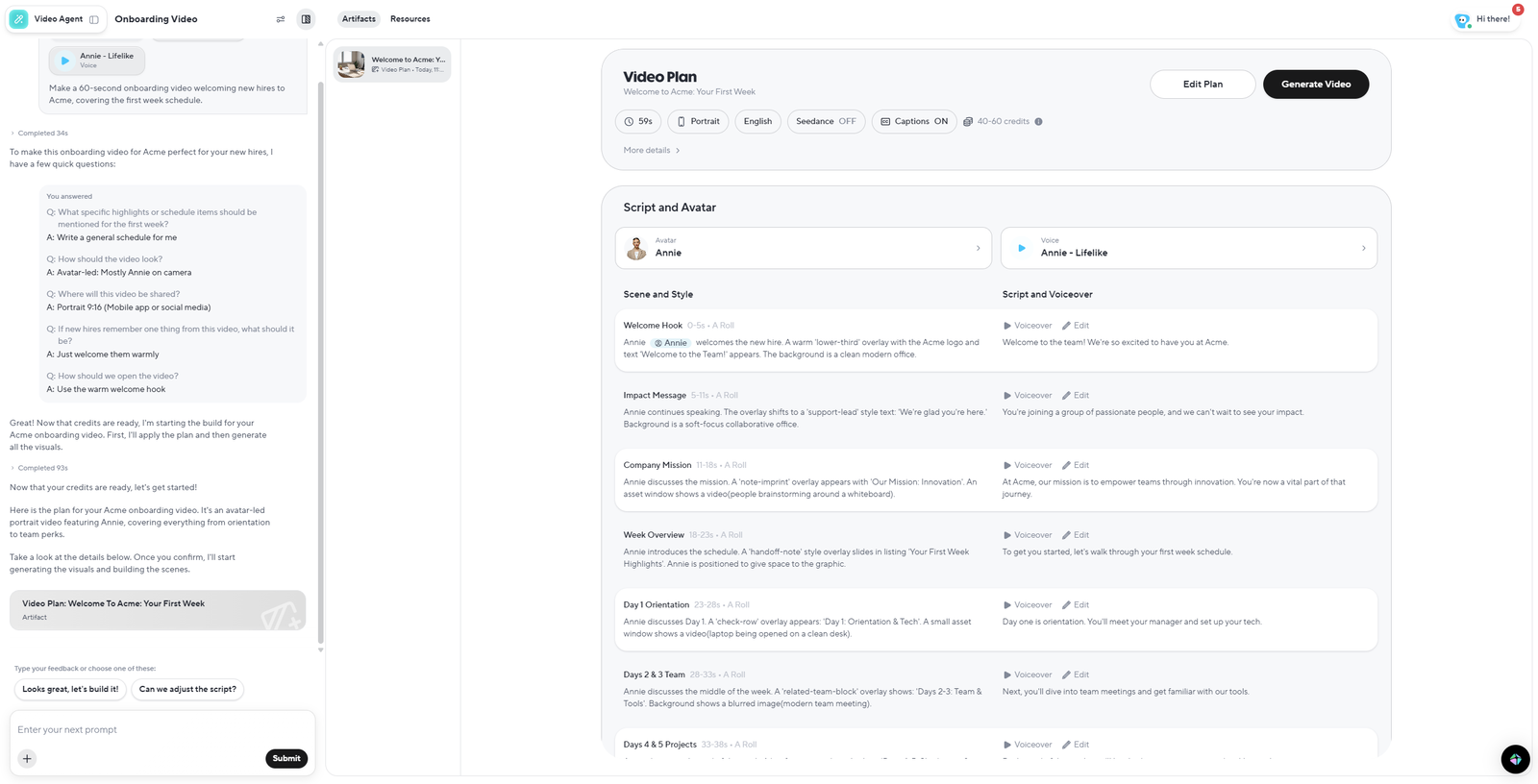
The plan is where you approve what Video Agent will make, and now it's easy to read. The title, Edit Plan, Generate Video and the plan details (length, orientation, language, estimated minutes) stay pinned at the top. The full script is laid out scene by scene below. Press play on any scene to hear the line in the plan's voice, with each word highlighted as it's spoken, before you spend any minutes.
Save a brand kit Video Agent made
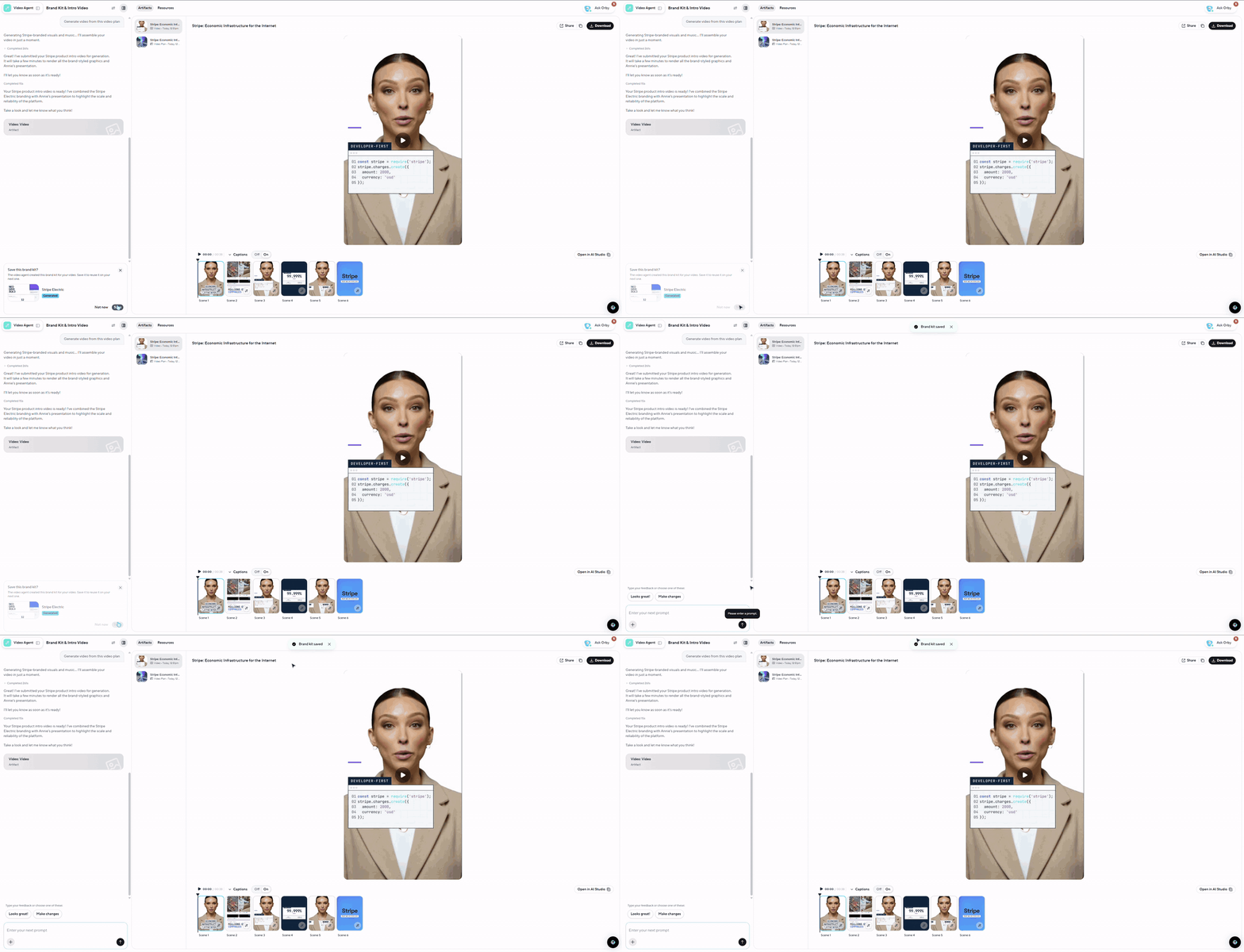
When Video Agent builds a brand kit from a website during a chat, it offers to save the kit to your workspace so you can use it again.
Video Translate: One submit button
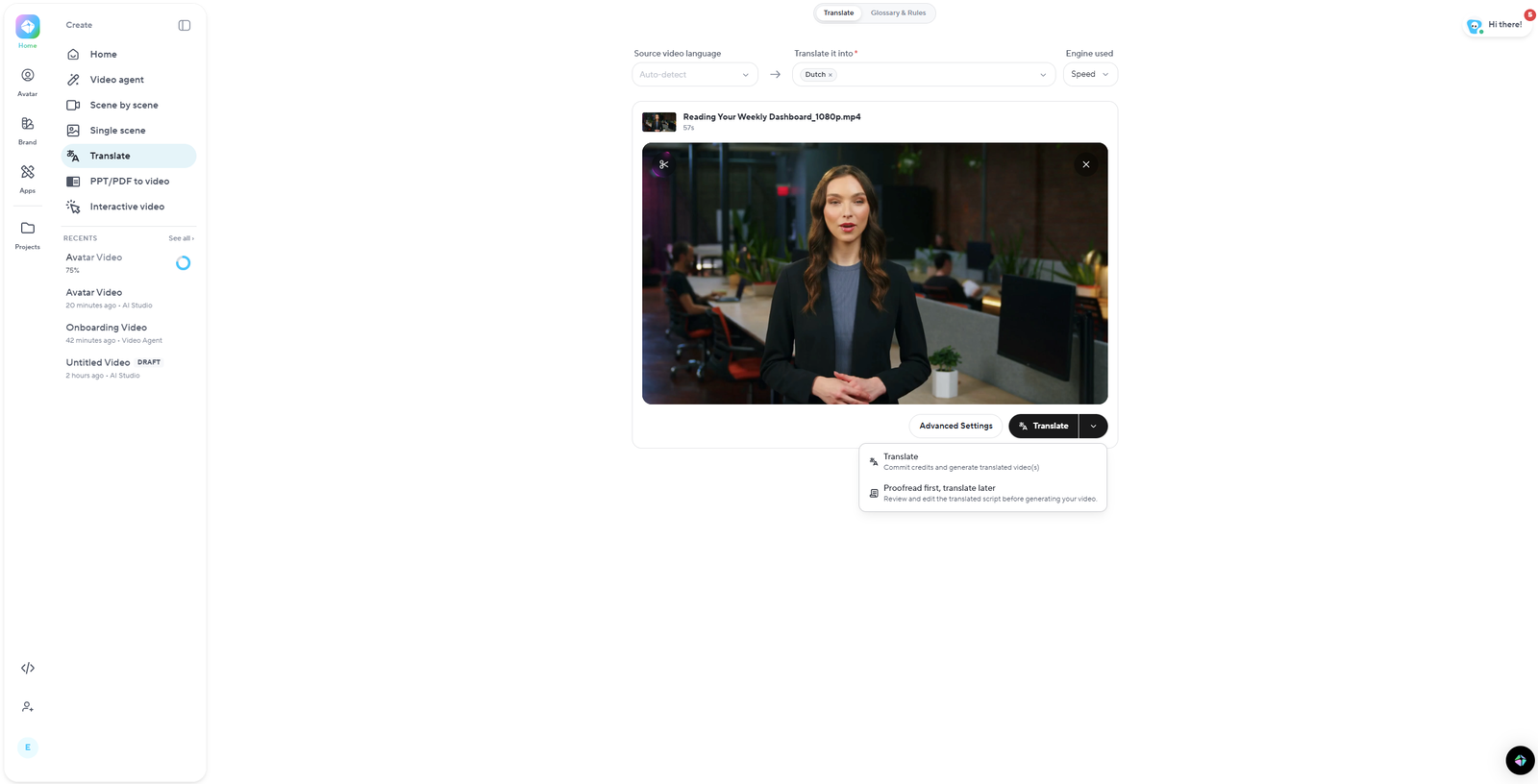
Translating and proofreading are now two options on one button. Choose Translate now to start, or Proofread first, translate later to review the script for free before using any credits.
Voices
One ElevenLabs engine, with a model picker
ElevenLabs is now a single engine. Pick the model underneath it: Eleven Multilingual v2, Eleven Turbo v2, ElevenLabs v3, or the new ElevenLabs v4. The controls change with the model. v2 models have similarity, stability, style and speaker boost, and v3 and v4 have a three-step stability setting. Voices and scenes you saved on ElevenLabs V3 open with the v3 model selected and sound the same as before.
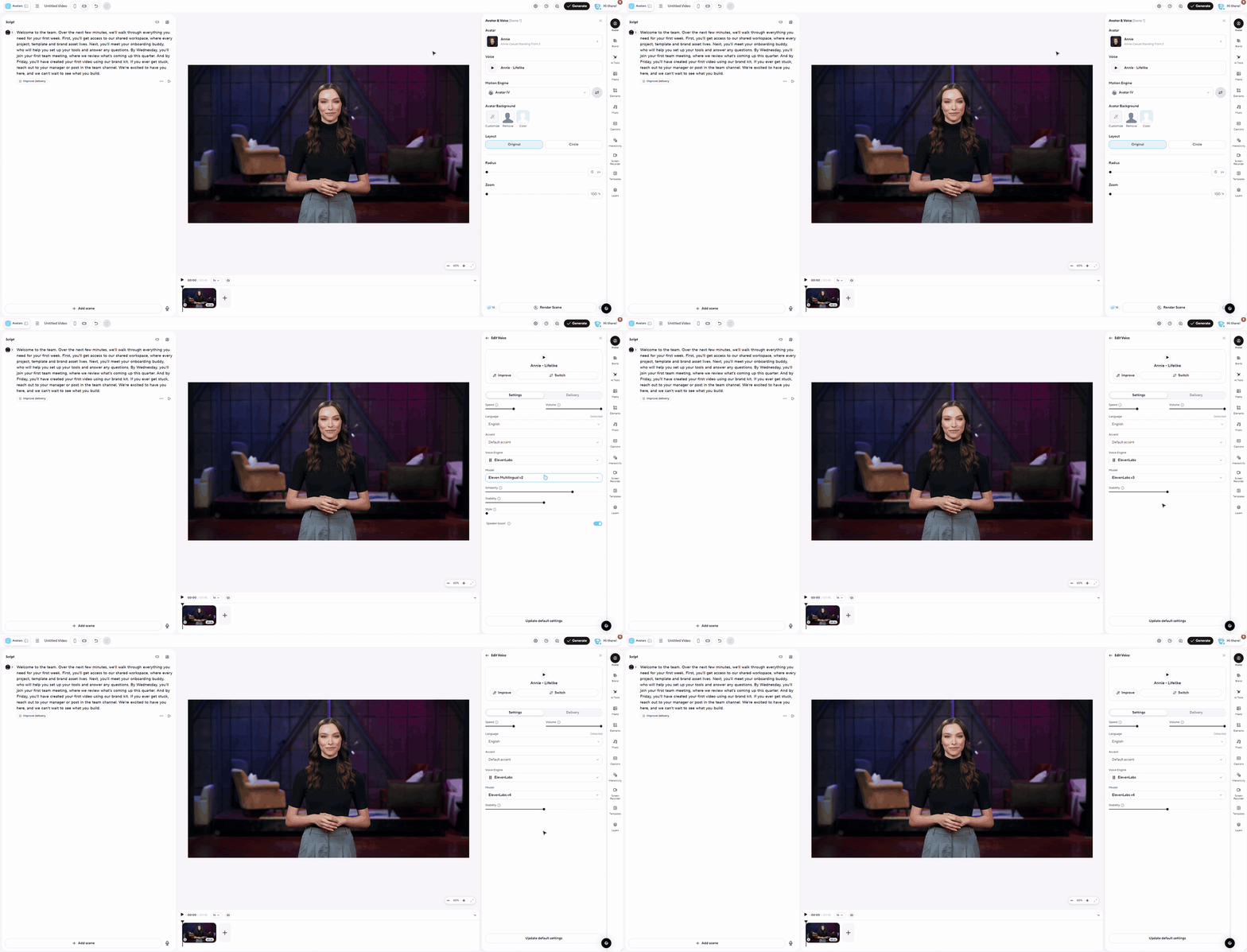
Orca similarity and delivery presets
Similarity: Medium, High or Max. Decide how closely an Orca voice matches the original speaker and how much it adapts to the scene. High is the default. Max is available for voices cloned from your own recordings.
Direct Voice presets. Give a scene one of seven deliveries: Friendly, Confident, Excited, Calm, Warm, Brisk or Emphatic. Revert takes it back to the voice as designed.
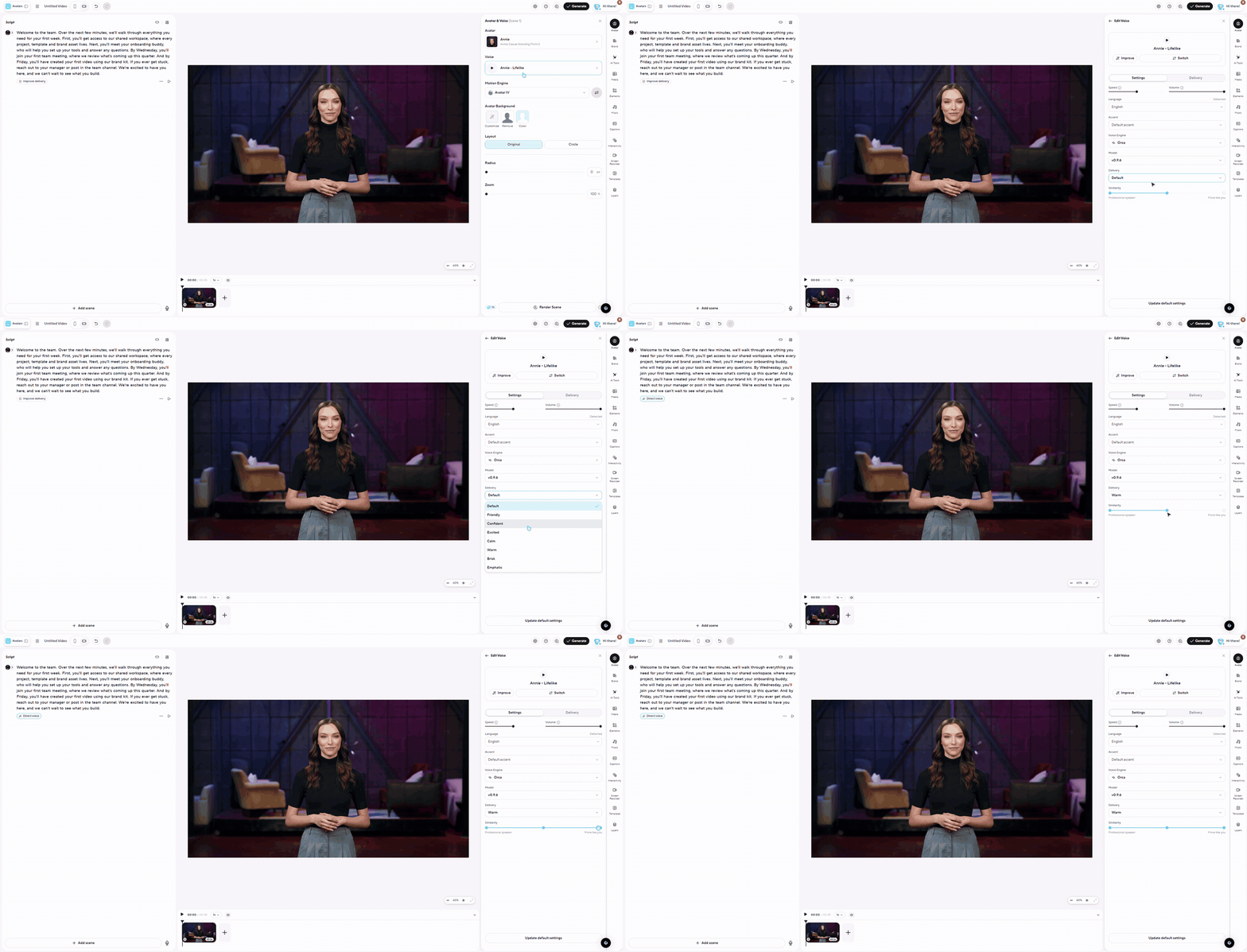
Improve Voice: Language and accent
Language and accent now have separate menus, so it's clear whether you want "English, any accent" or English with an Australian accent specifically.
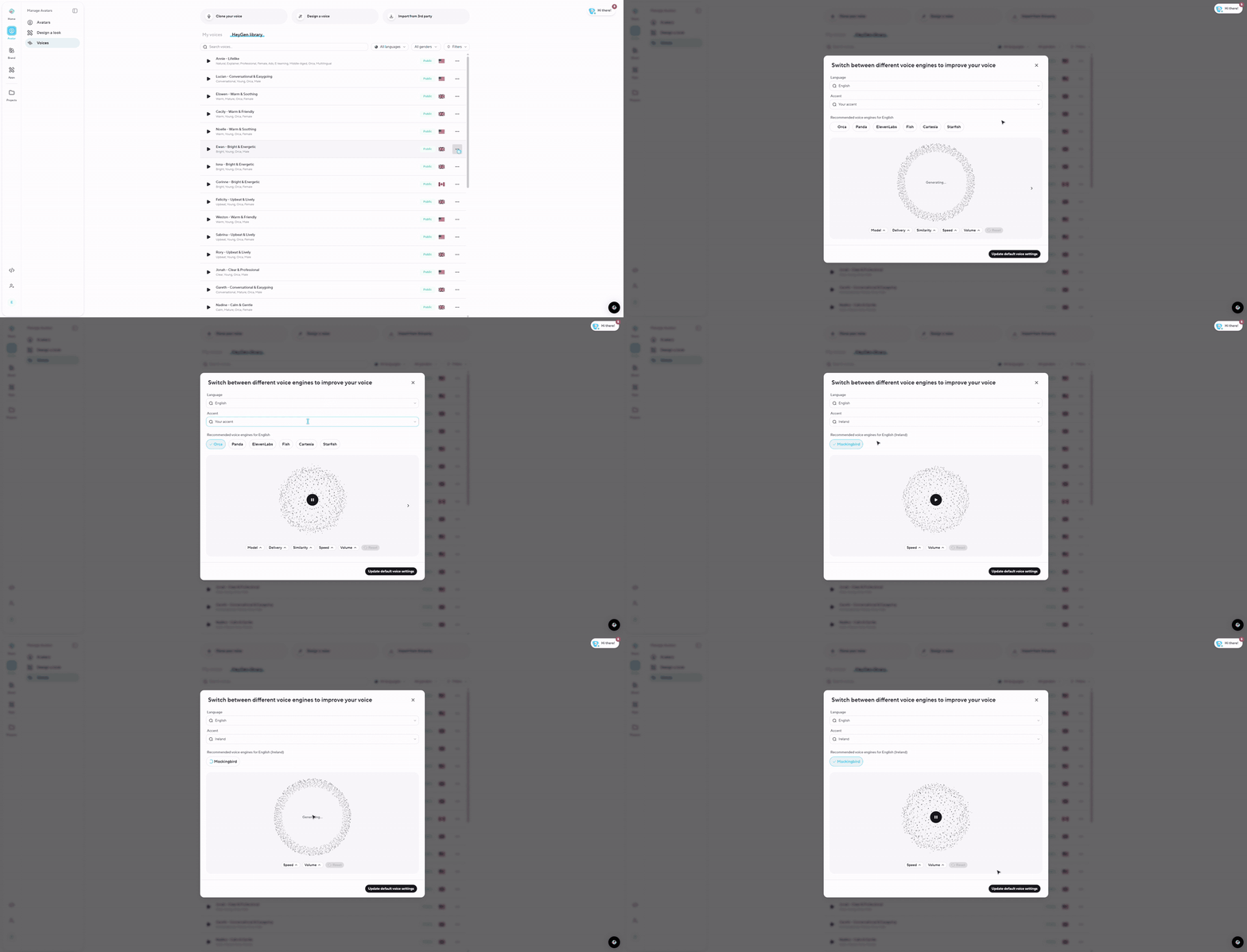
Voices page
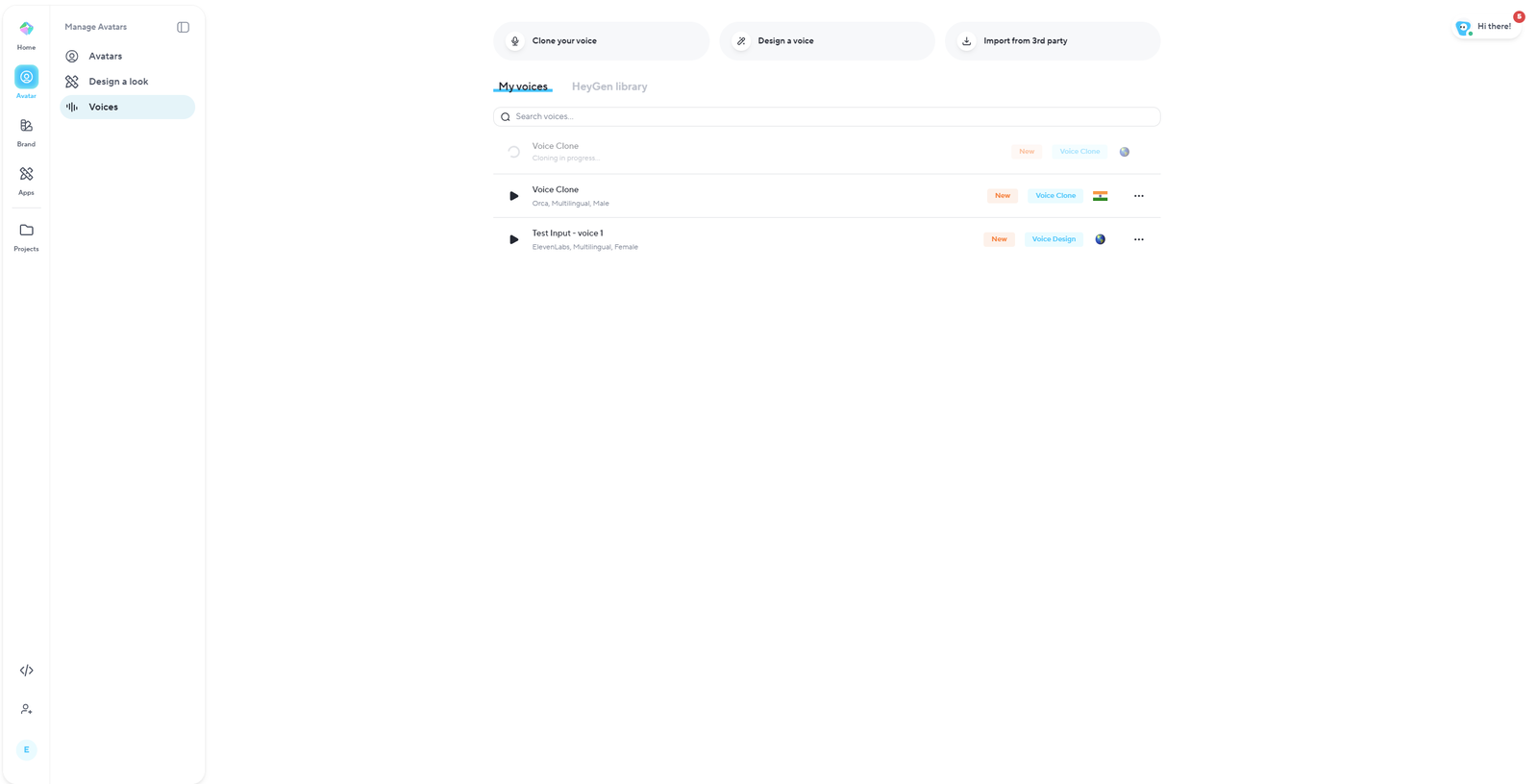
Voices shared with you from another workspace show a Shared badge with that workspace's name. Clones that are still being made, or that failed, now appear in My Voices with their status, so you don't have to wait to see them.
Avatars and looks
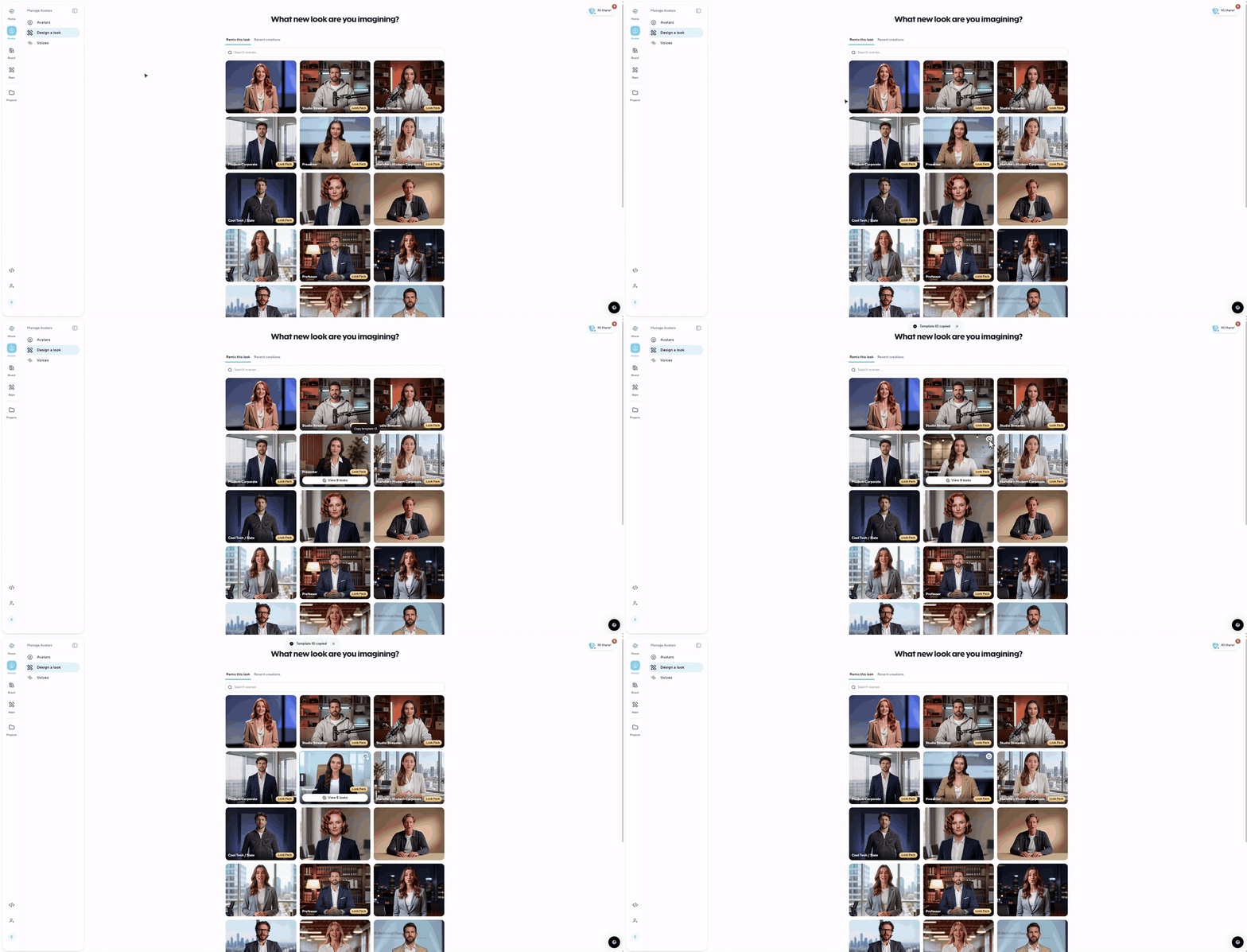
Copy template ID
Every Look Pack and look template card has Copy template ID. Paste the ID into the HeyGen API to create looks from code.
Projects
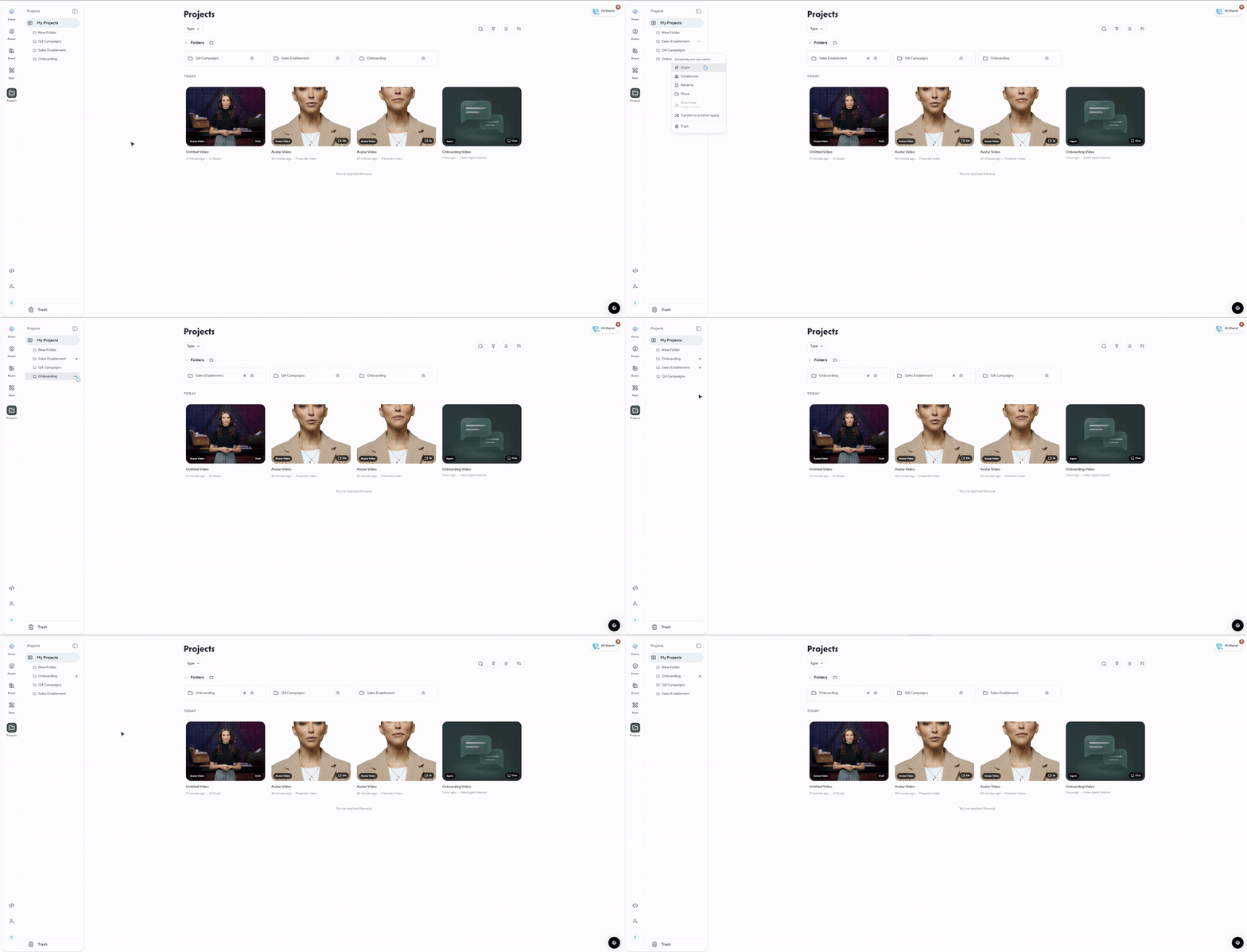
Pinned folders on every device
Pinned folders are now saved to your account instead of your browser, so they stay pinned on every computer and phone. The left sidebar lists all your pinned folders, and in Shared with me they appear first.
Smaller improvements
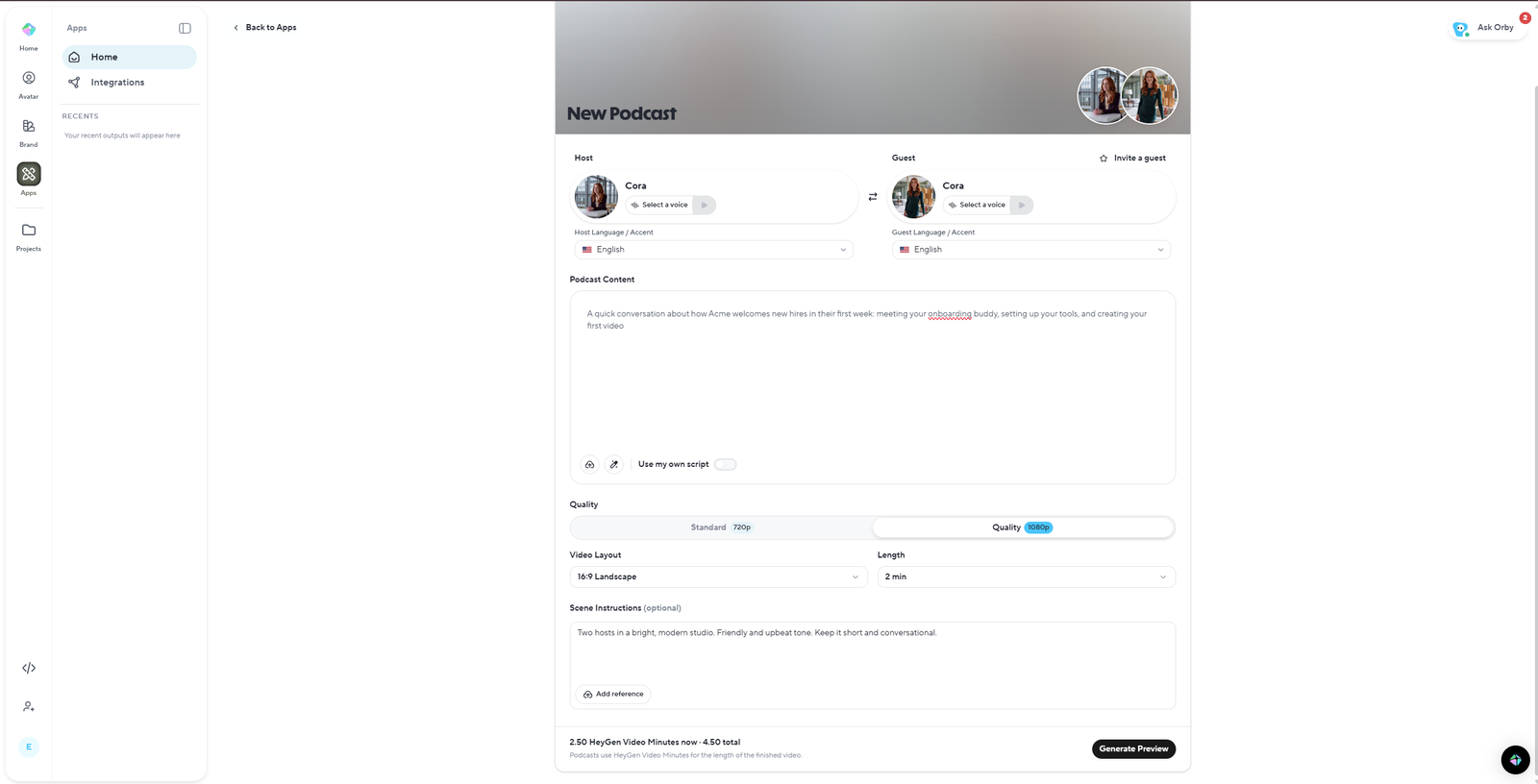
Podcast costs in your plan's unit. On plans billed in HeyGen Video Minutes, the Podcast estimate shows minutes to two decimal places.
More precise API usage. API usage shows credits to two decimal places, so small spend reads "0.15 credits" instead of "0". Sub-workspace cards show their actual usage.
Screen recordings that are split into scenes automatically get a thumbnail for each scene.
All Apps has a cleaner layout.
Send feedback to your account team from Ask Rhys. Choose Share Feedback with my Account Executive from the Ask Rhys start screen or the conversation menu.
Key Deprecations
A few options were retired this month. Most of them need nothing from you. Where something does, the steps are below.
Voices
Auto in the AI Studio voice engine menu
You can no longer pick Auto as an engine. Scenes that were set to Auto now show the engine that actually generated them, with an info icon explaining the change, so you can see and keep exactly what you heard.
What to do: Nothing. Your scenes sound the same.
Video Agent
Default voiceover is now ElevenLabs v4
Video Agent now uses ElevenLabs v4 for narration by default.
What to do: Nothing. New videos may sound a little different from older ones. To keep a particular voice, pick it in the session.
Voice-tuning sliders
The voice-tuning sliders are gone from Video Agent, and slider settings saved earlier are no longer applied. Narration now uses each voice's standard tuning, plus the delivery Video Agent directs for each line. Your saved settings aren't deleted.
What to do: Nothing. If a video sounds different from before, you can change it in either place. In Video Agent, ask for the delivery you want, for example "calmer" or "more energetic". In AI Studio, adjust the voice settings for each scene in the Edit Voice panel.
AI Studio and avatars
Chapters in the Submit step
The Chapters option and its editor are gone from the Submit step for interactive videos.
What to do: Nothing. Chapters on share pages and embeds, which come from AI Summary, work as before.
Mode picker in Avatar Shots
Avatar Shots now opens straight into Cinematic mode, and the mode picker at the top is gone.
What to do: Nothing. Presenter and Design Looks are still available.
Roles
Viewer role
The Viewer role has been fully retired. On September 16, every Viewer was moved to a current role, and the reminder banner is gone.
What to do: Nothing. Workspace admins can review member roles in Settings at any time.
Did you like this update?


Leave your name and email so that we can reply to you (both fields are optional):
