September 2026 Enterprise Releases
1788563925809
Here's what's new in HeyGen this month. Admins can now set usage limits for each member and answer their requests for more. Teams can work on one Video Agent session together. The Brand Glossary has been rebuilt, and we've added new SSO and brand controls plus more ways to fine-tune your voices. Take a few minutes to read through, and reach out to your account team with any questions.
1. New Features and Updates
BrandKit and Brand Governance
Define your brand once; apply it everywhere your team creates.
In brand page
Define your colors, fonts, and logos with named roles (Background, Main Text, Accent - or your own). Start from a designed preset, or paste your website URL to import your logos and colors automatically.
In AI Studio
A Brand panel in the editor applies your brand to the full video in one step, restyles individual elements, and switches systems mid-project for sub-brands and regional variants. The Video Agent uses the same system automatically.
Governance for admins
In workspace settings, pin a workspace default brand covering Video Agent, AI Studio, Templates, and API renders. Set it as Recommended (preselected, members can switch) or Locked (only the default applies), and control who can create and share kits. Kits are private until shared.
Avatar retirement and replacement
Retiring or deleting an in-use avatar opens a Replace Avatar flow that plans the swap across every affected project: choose the new avatar and voice per project or apply one choice to all, review, confirm. Unspecified voices resolve to the new avatar's default.
Template controls
Two admin controls in Settings → Content Permissions: restrict template creation to Super Admins, and lock any of 7 template attributes (Avatar, Avatar Look, Voice, Voice Engine, Motion Engine, Avatar Background, Layout) so they are read-only in the editor. Teams personalize the script and content; locked design stays as designed.
A new Home experience
The new Home page unifies your creation workflow from start to finish. All primary creation entry points are now conveniently organized in the sidebar for a fast, one-stop experience. Meanwhile, a guided path takes you smoothly from creating your digital twin to producing your first video, complete with ready-to-go prompts just a click away.
API usage dashboard, redesigned
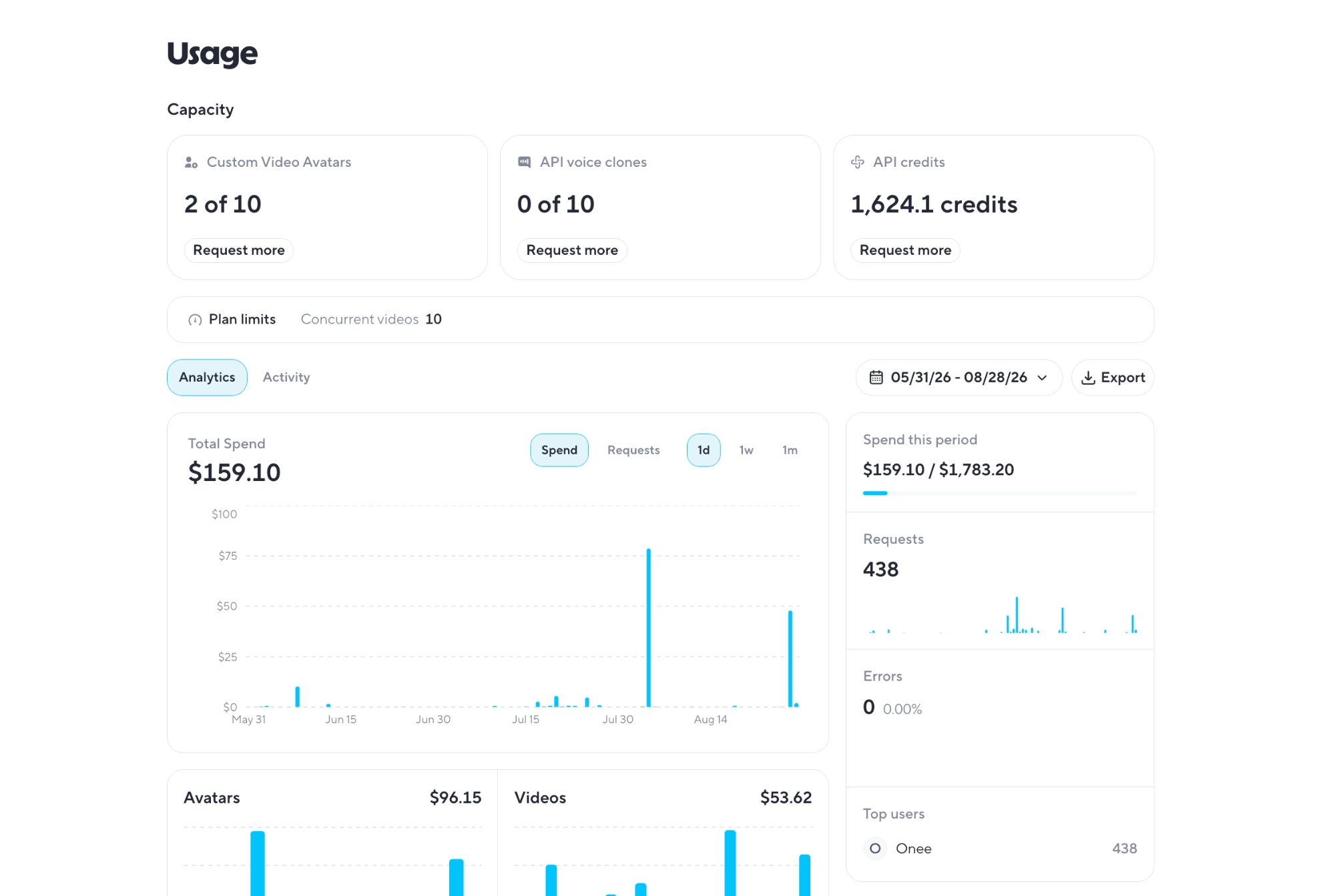
Developers → Usage is now a full analytics surface: a spend and requests chart with day, week, and month views, per-product usage across the v3 API families, budget and error rates at a glance, a top-users leaderboard, and per-product activity export.
You can also request more capacity right from the dashboard, avatar slots, voice slots, or API credits, and your account executive will follow up to get them assigned.
Projects page, organized for scale
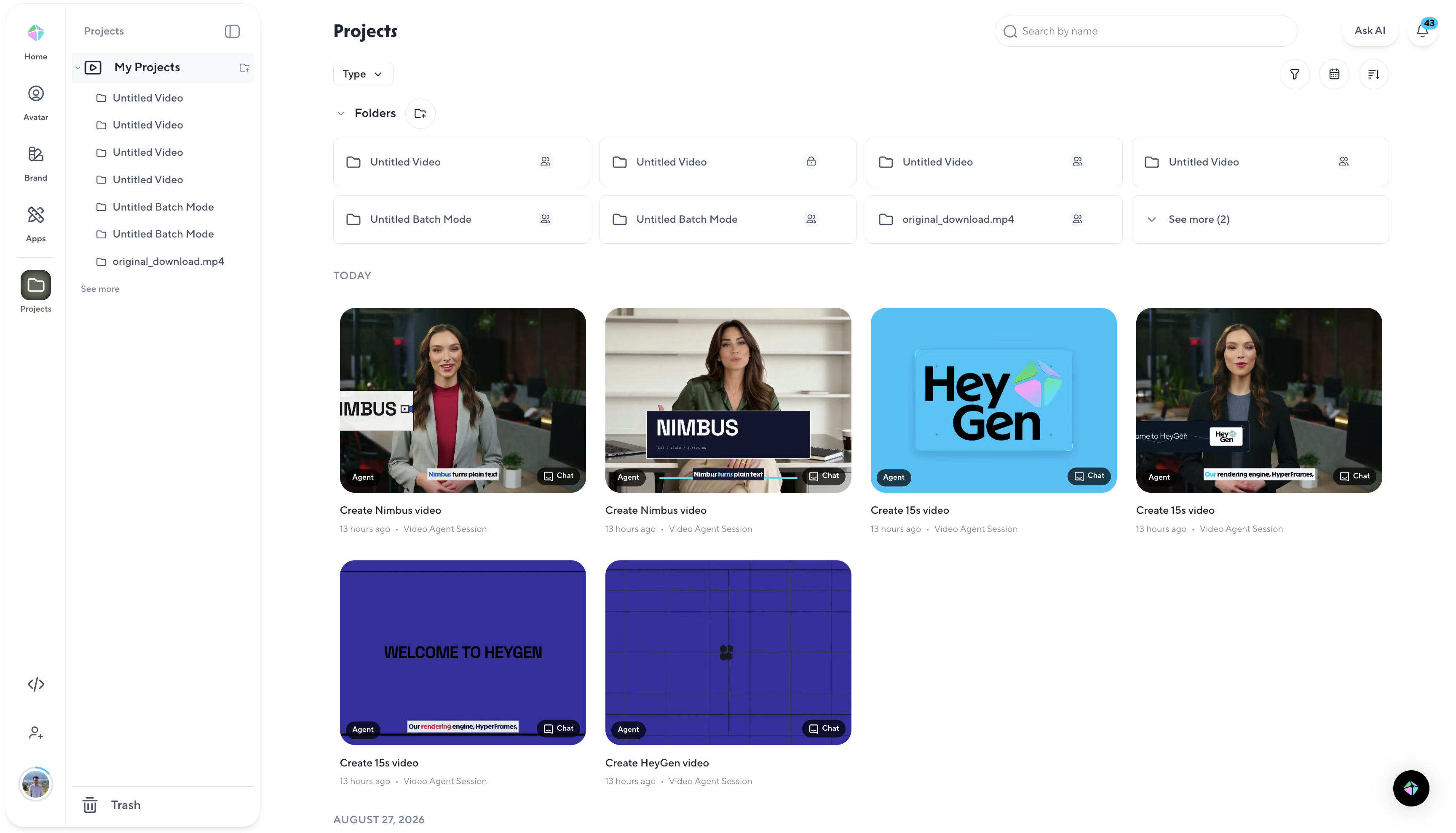
The Projects page gets an enterprise layout: filters on their own row, a dedicated Shared with me section, and a new Access column in list view showing who can reach each project - Private, your workspace, or the specific people it's shared with.
Voices that match your script
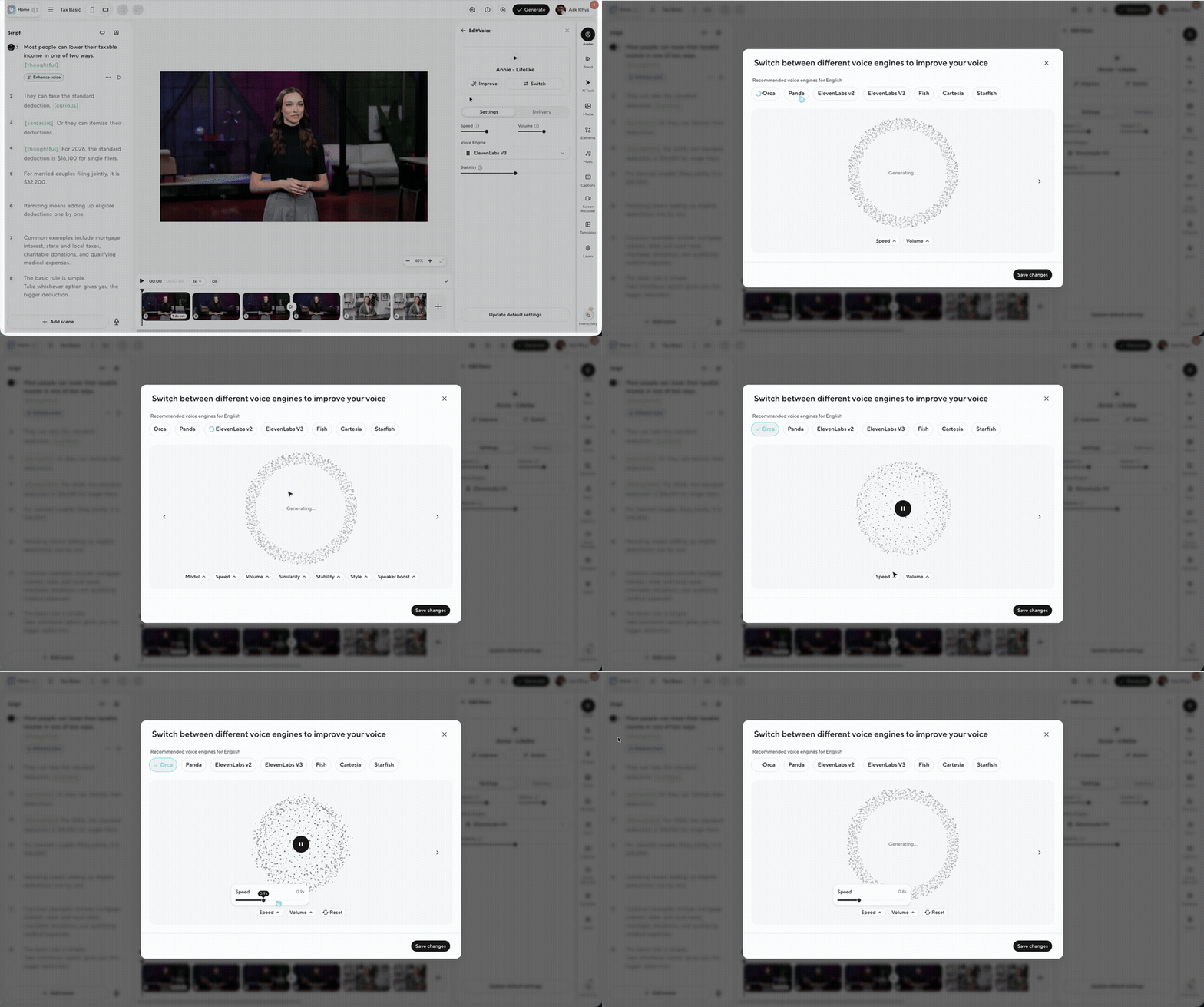
We've simplified voice selection across AI Studio and the Voices page. The refreshed interface shows only the engines that support your script's language, removes chat, and collapses advanced settings, so choosing a voice takes fewer steps and fewer decisions. “Auto” has been retired in favor of explicit, language-matched selection.
AI Studio now validates each scene's script language against the selected voice engine before you preview or generate. If the two don't match, Improve Voice routes the scene to a compatible engine, so every render sounds the way you intend.
Voices settings in AI Studio
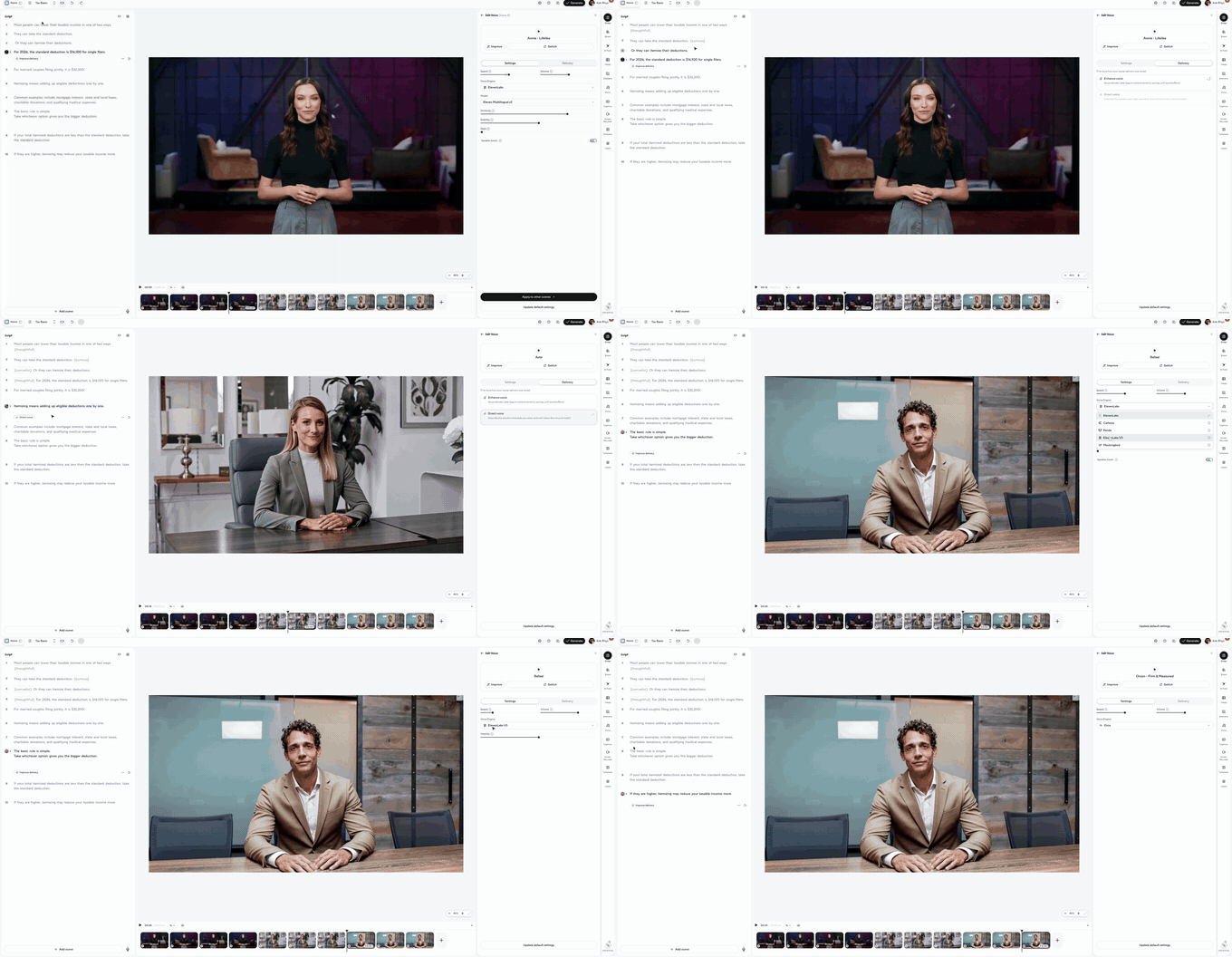
The voice control is rebuilt so settings apply consistently per scene and per voice, and adds a new voice-editing style option.
Blind voice-engine choice
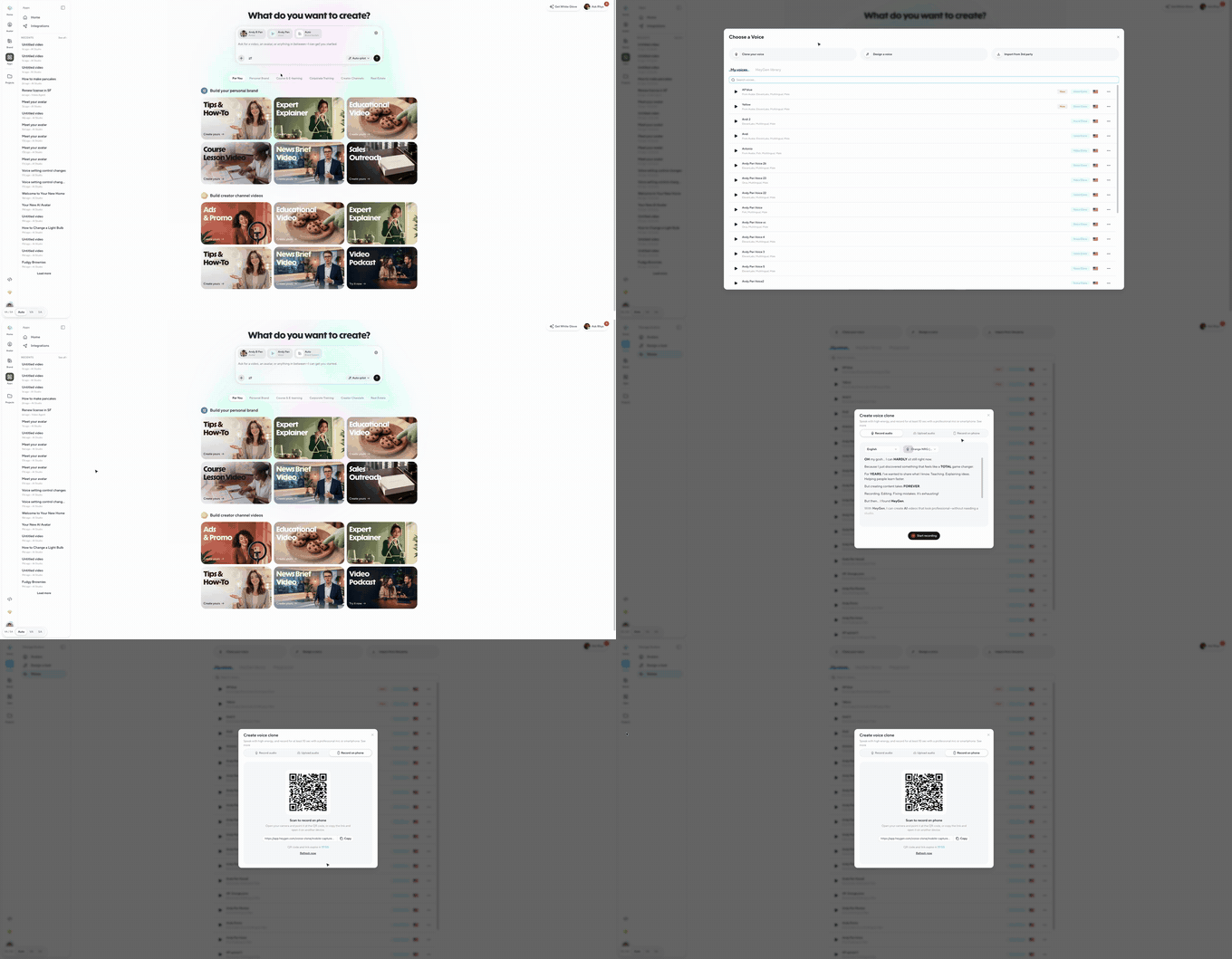
When creating a voice clone, engine options appear as Option A, B, C - no provider names - so you choose on sound alone.

Record Voice Clone on your phone via QR
Scan a QR code, record the source audio on your phone, and the recording drops straight into the clone flow.
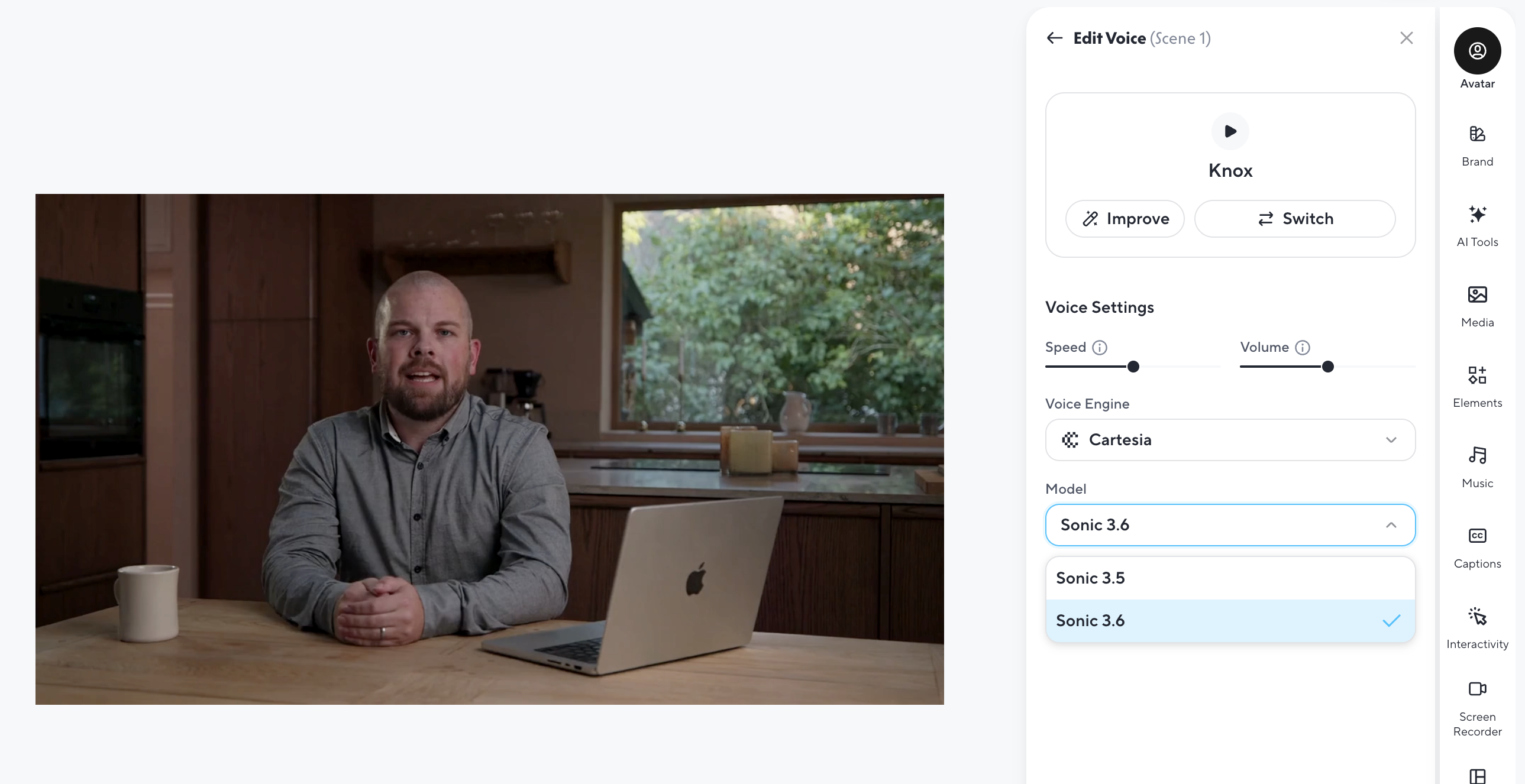
Cartesia Sonic 3.6 voice model
Cartesia Sonic 3.6 is now available to all Enterprise users, bringing enhanced voice quality and a more natural, expressive speech experience.
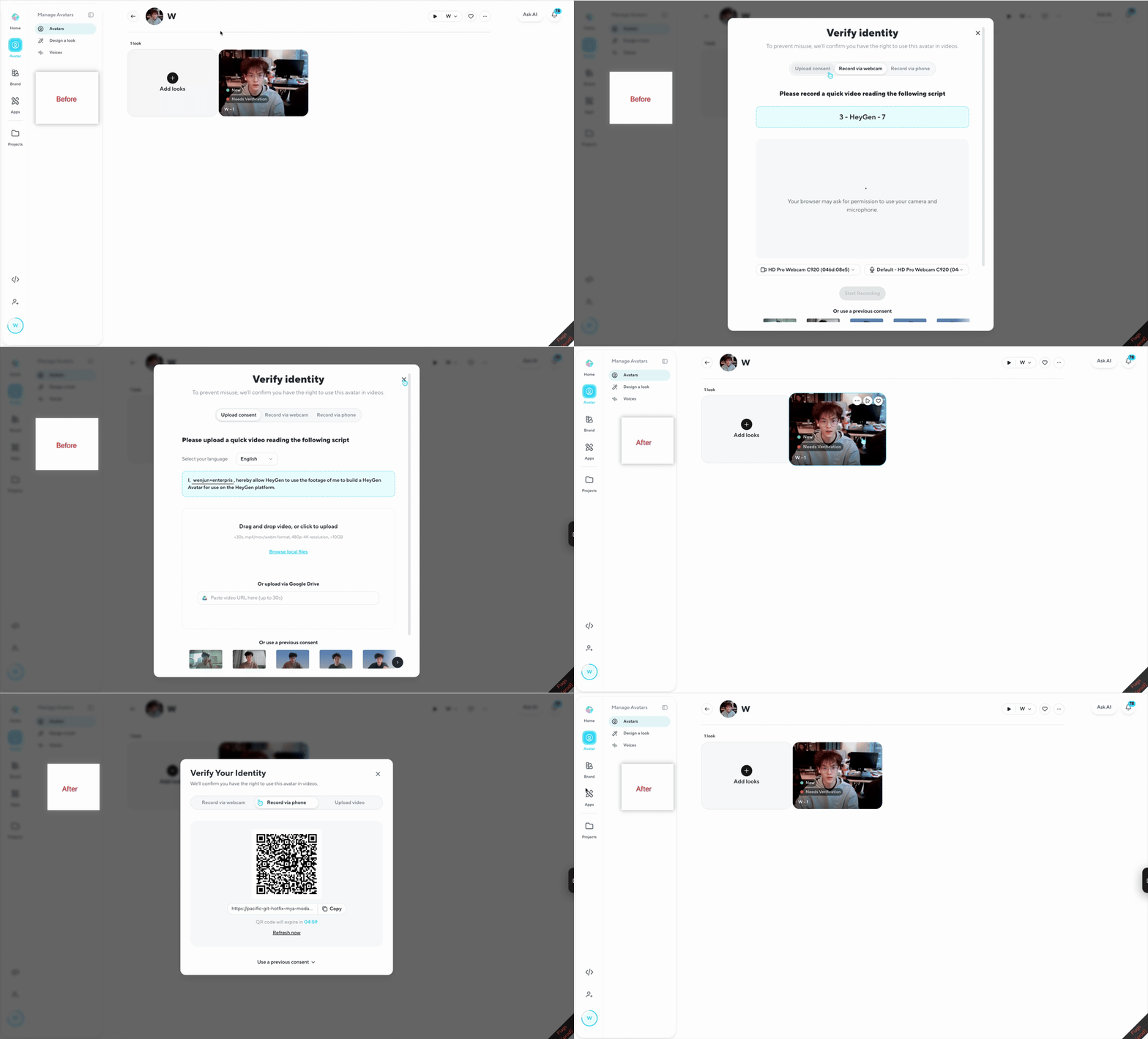
Identity verification UI update
Updated the post-consent verification experience with a clearer, streamlined UI for webcam, phone, and upload verification flows, helping users navigate the verification process faster and more easily.
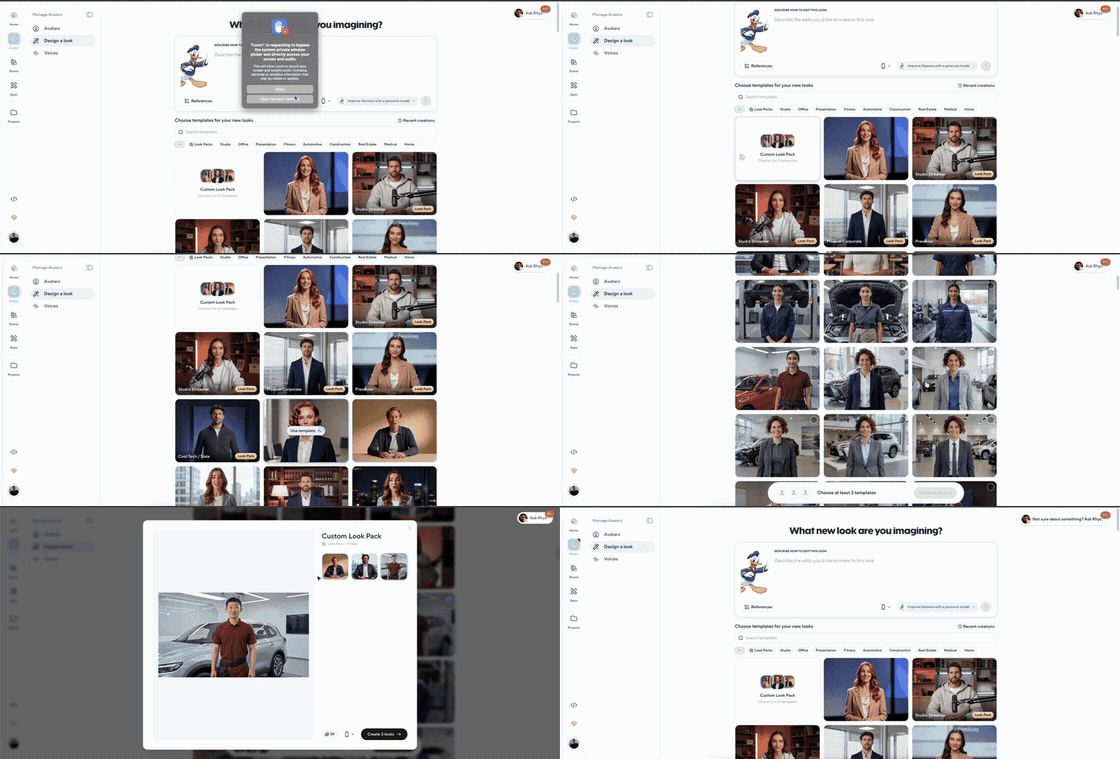
Build your own custom Look Pack
Previously, liking a single look inside a pack meant generating the entire pack. Custom Look Packs remove that constraint: browse all available looks and references across every pack, select the 3–12 you actually want, and generate a new look for each one — identity preserved across the set, delivered straight into your avatar group. You're no longer bound by preset packs; you build the pack you want, look by look.
2. Key Deprecations
Motion Elements
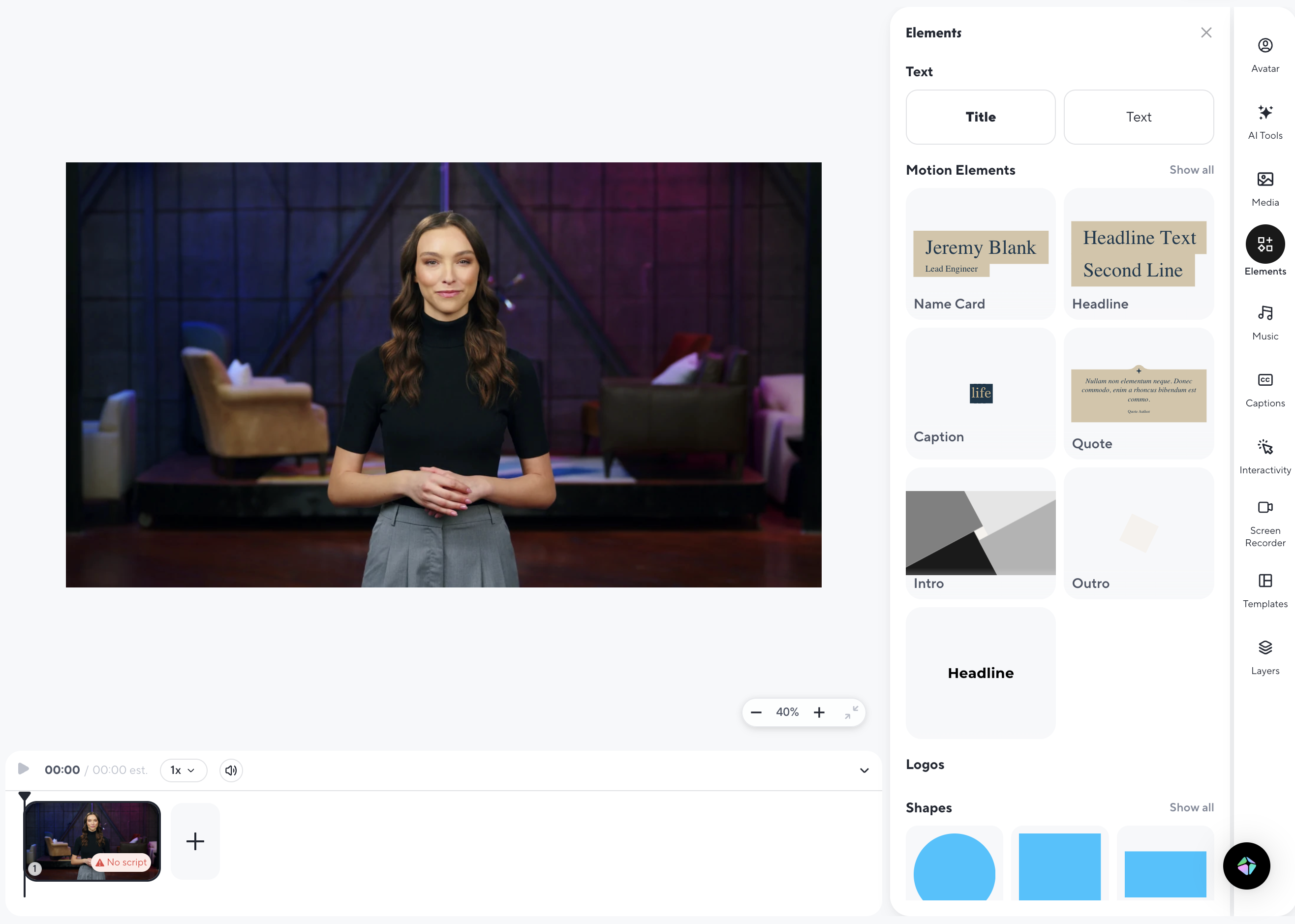
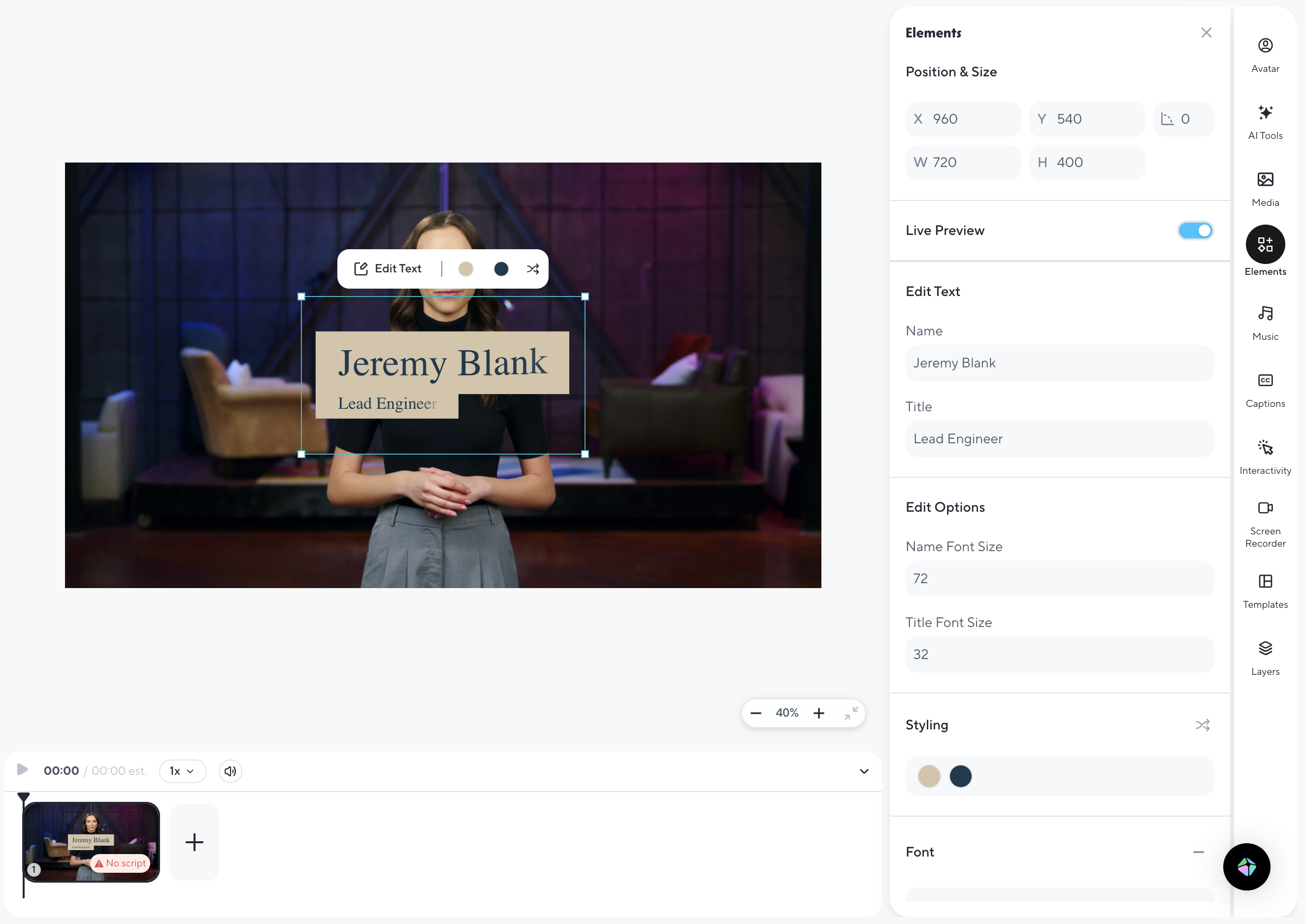
The legacy Motion Elements pack (Name Card, Headline, Caption, Quote, Intro, Outro) is being retired in favor of HyperFrames, a brand-aware motion-graphics system.
Everything you've already built keeps rendering exactly as it does today - existing videos, projects, and templates are untouched. The rest of the Elements tab stays where it is.
Viewer and Developer role retirement
To simplify roles and permissions in HeyGen, we’re retiring the Viewer and Developer roles.
Viewer: Existing Viewer members already count as seats, so upgrading them to Creator or Super Admin will not change your seat count or billing. If they only need to review or approve content, Proofreading and Approval workflows can support those use cases without requiring a role upgrade.
Developer: The Developer role will be combined with the Creator role. Existing Developers will retain access through the Creator role.
Before Sep 15th, super admins should either upgrade or remove Viewer members. Any remaining Viewers will automatically be converted to Creator after the deadline.
Viewer is also no longer available when inviting new members or changing an existing member's role, so no new Viewers can be added during the transition.

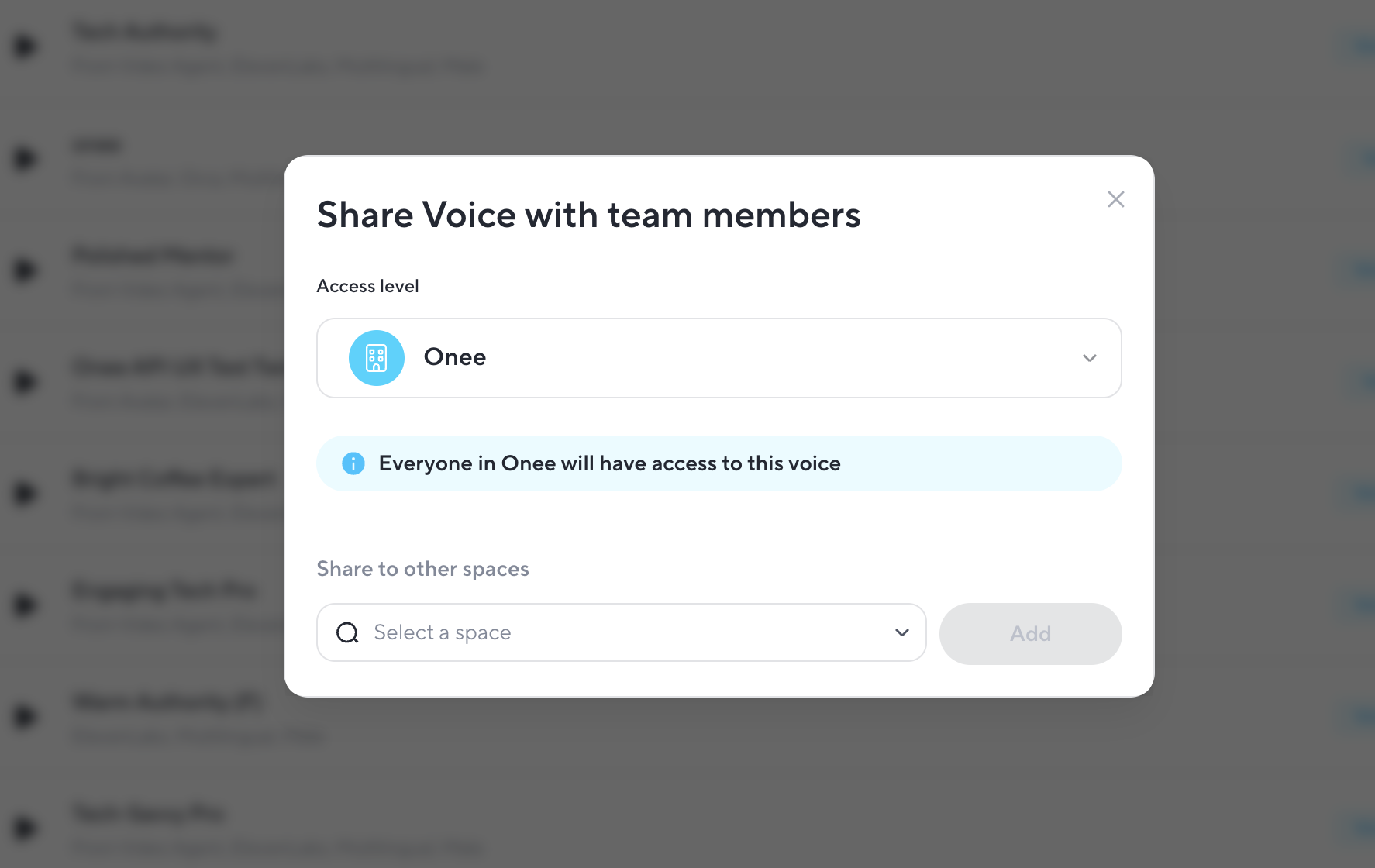
Voice sharing via email
We’re deprecating voice sharing via email. Voice sharing through Spaces will remain available.
Video Agent Essential Mode
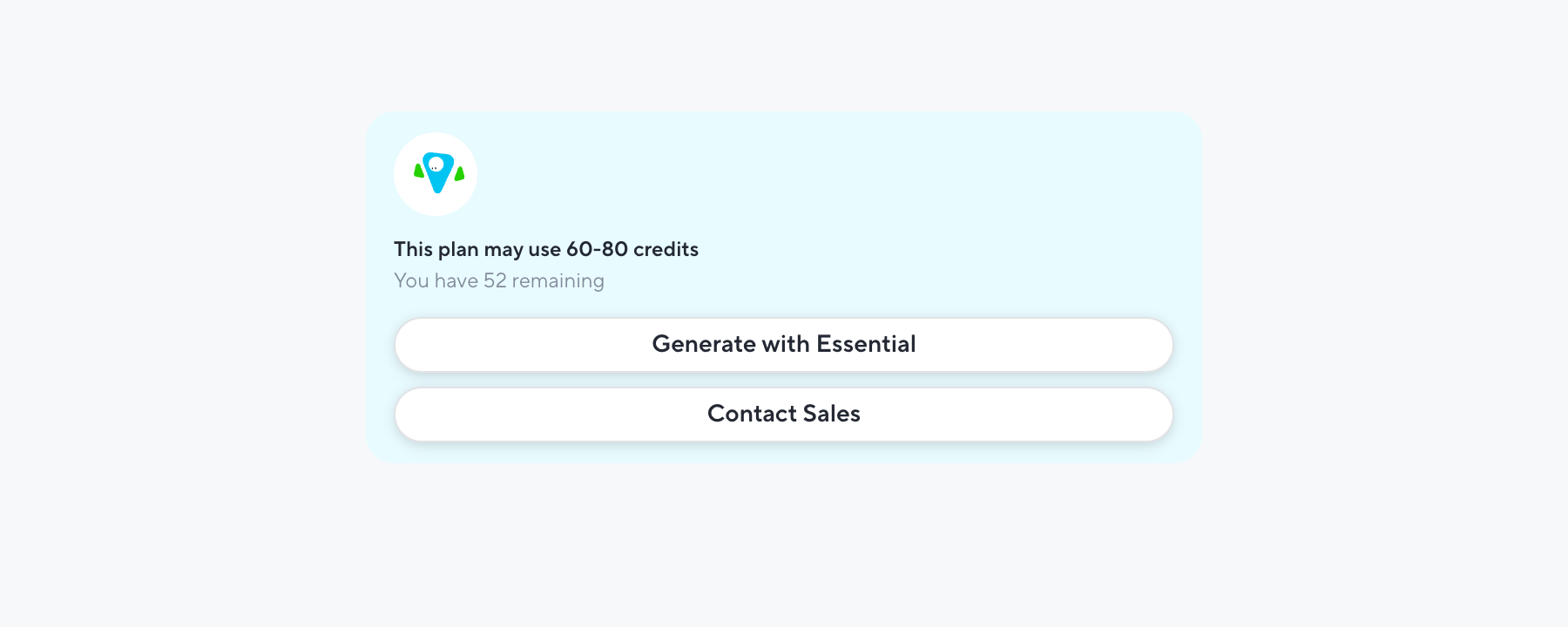
We’re retiring Video Agent Essential Mode. You can continue creating videos with the standard Video Agent experience using available credits or video minutes.
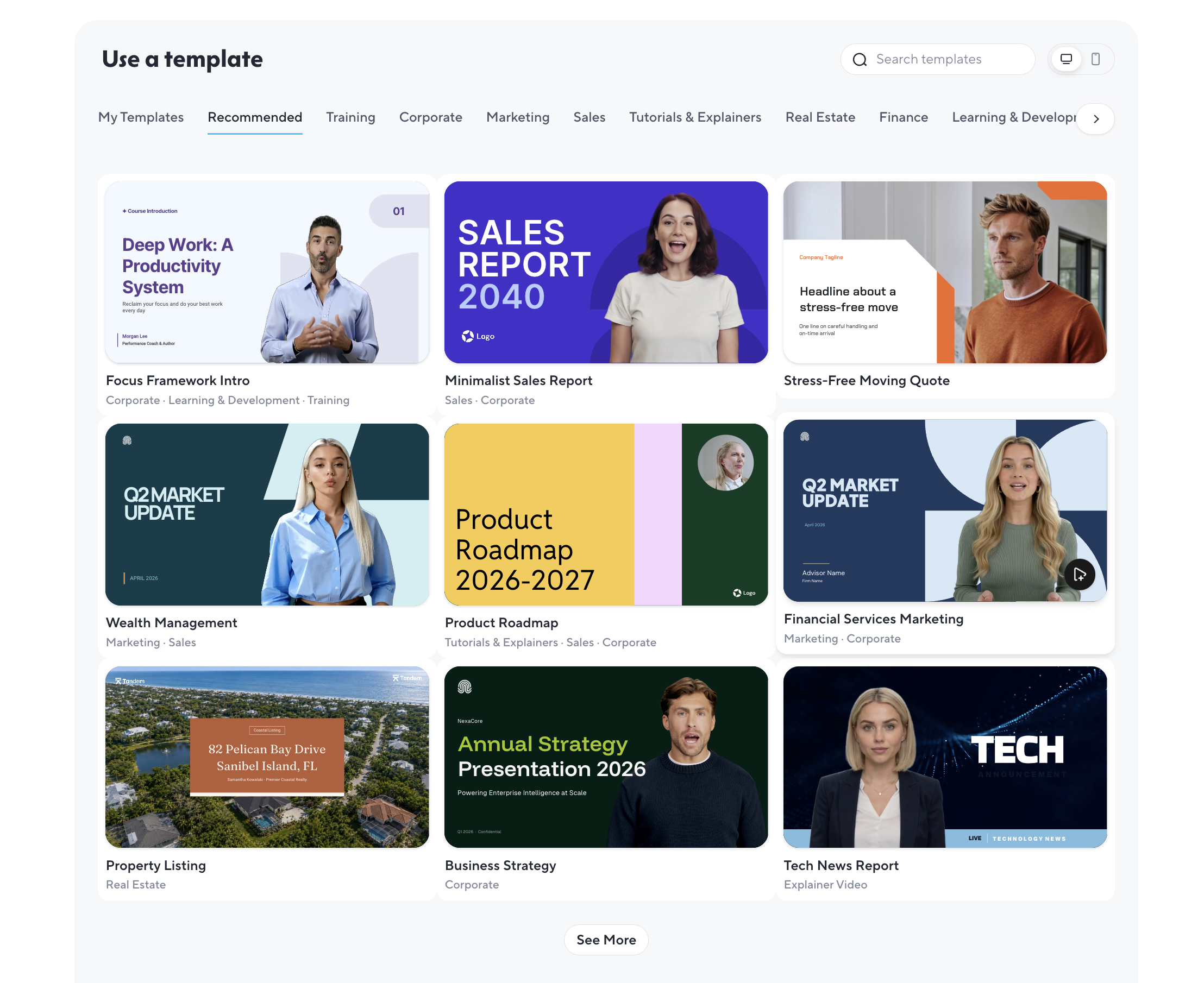
Brand System styling moves from Templates to AI Studio
Brand styling now lives in AI Studio instead of the template list. Rather than selecting a Brand System on the templates page to pre-style previews, open a template in AI Studio, choose a Brand System from the Brand panel, and select Apply to full video.
Colors, fonts, and logos will be applied across the entire video in one step, and a single undo will revert the changes. You can still fine-tune the video afterward by selecting an individual element. Its Brand section will provide access to the colors, typography roles, and logo assets from the same Brand System.
Did you like this update?


Leave your name and email so that we can reply to you (both fields are optional):
